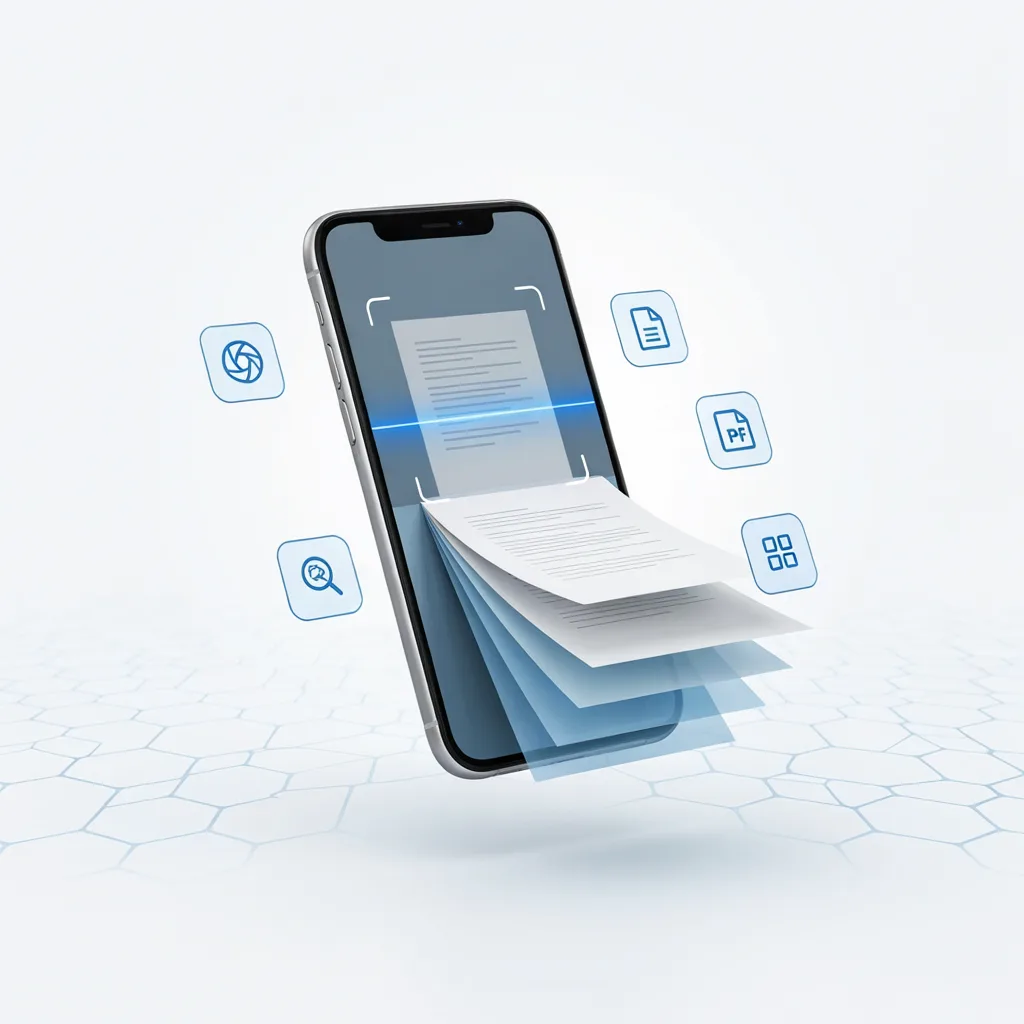
Your iPhone can do much more than take photos and videos. With the right scanner app, it can also turn paper documents, receipts, notes, forms, and other physical pages into clean digital files. For students, professionals, business owners, and anyone trying to reduce paper clutter, a scanner app for iPhone can be extremely useful.
The App Store has many options, ranging from completely free tools to advanced document-scanning apps with cloud storage, OCR, PDF editing, and sharing features. The challenge is choosing the right one.
This guide explains what to look for when choosing the best scanner app for iPhone, including free scanner apps, PDF scanning tools, and apps designed for regular document management.
What Is an iPhone Scanner App?
An iPhone scanner app uses the phone’s camera to capture a document and convert it into a digital file. Most modern scanning apps can automatically detect the edges of a page, correct perspective, improve readability, and save the result as an image or PDF.
A good iPhone scanning app can be useful for:
- Scanning receipts
- Digitizing handwritten notes
- Saving business documents
- Creating PDF files
- Scanning school assignments
- Capturing contracts and forms
- Sending documents by email
- Keeping copies of important paperwork
Some apps also include optical character recognition (OCR), which can identify text inside a scanned document and make it searchable or editable.
What Makes the Best Scanner App for iPhone?
Not every scanner app offers the same features. Before installing one, consider how you plan to use it.
1. Document Detection
Automatic edge detection makes scanning much easier. The app should recognize the document and crop out the surrounding desk, floor, or background.
2. PDF Support
If you regularly scan documents for work or school, iPhone PDF scanner functionality is important. Look for an app that can combine multiple pages into one PDF.
3. Image Quality
A scanner app should produce readable text without excessive shadows, blur, or distortion. Automatic enhancement can make a major difference when scanning under poor lighting.
4. OCR
OCR allows an app to recognize text from a scanned page. This can be useful when you need to search through documents or copy text instead of manually typing everything.
5. Cloud Storage
Some apps connect with services such as Google Drive, Dropbox, OneDrive, or other cloud platforms. This makes it easier to access scanned documents from multiple devices.
6. Privacy
Documents may contain sensitive information such as addresses, financial details, identification numbers, or business information. Before using a scanning service, check how it stores and processes your documents.
Best Scanner Apps for iPhone
There are several types of scanning solutions available for iPhone users. The best choice depends on whether you need occasional scans or a complete document-management workflow.
Apple Notes
Before downloading a third-party application, check the built-in scanning functionality available through Apple’s Notes app. It can scan documents directly with the iPhone camera and is convenient for occasional users.
This option is particularly useful if you simply need to scan a document quickly without installing another application.
If you are looking specifically for how to scan on iPhone for free, Apple’s built-in tools are a good place to start.
Adobe Scan
Adobe Scan is designed around document scanning and PDF creation. It can automatically detect documents, improve scanned pages, and create digital files.
It can be useful for people who frequently work with PDFs and other Adobe products.
Microsoft Lens
Microsoft Lens is another popular option for capturing documents, whiteboards, business cards, and notes. It can be useful for people already using Microsoft services.
Its document-focused features make it a practical option for students and professionals.
Google Drive Scanning
Depending on the version and platform features available, Google Drive can also be used as part of a document-scanning workflow. This can be convenient if your documents are already organized within Google’s ecosystem.
Are There Free Scanner Apps for iPhone?
Yes. There are free scanner apps for iPhone, although the meaning of “free” can vary.
Some apps provide basic scanning at no cost but charge for advanced features. Others may limit the number of scans, PDF exports, cloud storage, OCR, or editing functions.
If you only need to scan a few documents occasionally, a built-in iPhone option may be enough. For frequent scanning, compare the free features carefully before choosing an app.
For a more focused comparison of no-subscription options, see our guide to free scanner apps for iPhone with no subscription.
Best Free Scanning App for iPhone: What Should You Choose?
The best free scanning app for iPhone depends on what you need.
For occasional documents, built-in Apple features can be convenient because you do not need another account or application.
For PDF-heavy workflows, a dedicated scanner app may provide better organization and export options.
For users who need OCR, cloud storage, batch scanning, or advanced document management, a paid plan may provide more useful features.
Instead of choosing an app simply because it has the word “free” in its listing, check whether the features you actually need are included without a subscription.
How to Scan a Document on iPhone
Scanning a document does not have to be complicated.
In general, the process looks like this:
- Open your preferred scanning tool.
- Place the document on a flat surface.
- Position the iPhone above the page.
- Allow the scanner to detect the document edges.
- Capture the page.
- Check the crop and image quality.
- Add additional pages if necessary.
- Save or export the finished document.
If you want a more detailed walkthrough, our guide on how to scan documents on iPhone for free covers the process in greater detail.
Can an iPhone Scan Documents Directly to PDF?
Yes. Many scanning tools can create PDF documents from images captured with the iPhone camera.
This is particularly helpful when you need to send a multi-page document. Instead of sending several separate photographs, you can combine the pages into a single PDF file.
A dedicated PDF scanner app for iPhone may also provide additional features such as page reordering, cropping, compression, signatures, and text recognition.
How to Get Better Scans on iPhone
Even the best scanning application cannot completely fix a poorly captured document. A few simple habits can improve results.
Use Good Lighting
Place the document somewhere with even lighting. Avoid strong shadows across the page.
Keep the Phone Straight
Try to hold the iPhone directly above the document. Keeping the camera parallel to the page reduces perspective distortion.
Use a Clean Background
A contrasting background can help automatic edge detection identify the document more accurately.
Check Every Page
Before exporting a multi-page PDF, review the pages. Look for blurry text, missing corners, incorrect cropping, or pages captured in the wrong order.
Use OCR When Necessary
If you need to search or copy information from a document, choose a scanner that supports OCR.
Scanner App vs. iPhone Camera
You can technically photograph a document with the normal Camera app, but a dedicated scanner provides several advantages.
A normal photograph may contain unnecessary background areas and perspective distortion. Scanner apps are designed to detect the page, crop it, improve contrast, and create a more document-friendly result.
For a single quick reference, the Camera app may be sufficient. For repeated document scanning, a dedicated scanner workflow is usually more convenient.
How to Choose the Right iPhone Scanner App
When comparing the best scanning app for iPhone, consider these questions:
- Do you need completely free scanning?
- Do you need PDF creation?
- Will you scan multiple pages?
- Do you need OCR?
- Do you need cloud storage?
- Do you need document editing?
- Do you want a no-subscription option?
- Will you scan sensitive documents?
- Do you need to share documents by email or messaging apps?
Answering these questions will help you avoid choosing an app with features you do not need or paying for features that are unnecessary.
Final Thoughts
The best scanner app for iPhone depends on your scanning habits. For occasional users, Apple’s built-in document scanning tools can be enough. For people who regularly create PDFs, scan multiple pages, recognize text, or manage large numbers of documents, a dedicated scanner application can provide a more complete workflow.
There are also several free scanner apps for iPhone worth considering, but always check what the free version actually includes. A good scanner should make document capture quick, produce readable results, support the file format you need, and provide convenient ways to save or share your documents.
If your main goal is finding a scanner without recurring costs, compare the options in our guide to free scanner apps for iPhone with no subscription. And if you simply want to learn how to scan on iPhone for free, follow our step-by-step scanning guide.




Leave a Reply