Quick Answer
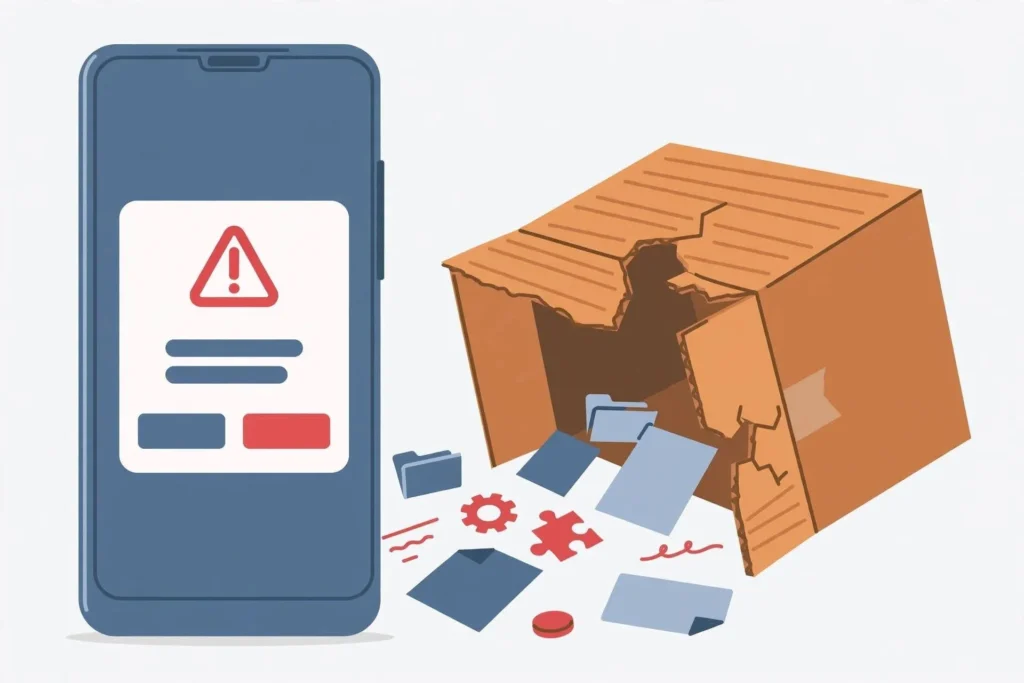
“App not installed” on Android usually means one of four things: the APK file is corrupted, a different-signed version of the same app is already on your phone, you’re out of storage, or the app isn’t compatible with your device. Re-download the APK, free up space, and uninstall the old version of the app first — that combination fixes it for most people. If it doesn’t, work through the 9 fixes below in order.
Why Does “App Not Installed” Happen?
Android shows this generic error instead of telling you the real cause. The most common ones:
- Corrupted or incomplete APK download — the file didn’t download fully.
- Signature conflict — a version of the same app, signed with a different certificate, is already installed. Android refuses to install over it.
- Not enough free storage — Android needs working room beyond the APK size.
- Incompatible app — wrong Android version, wrong CPU architecture, or an ancient app Android 14+ refuses to install.
- “Install unknown apps” not allowed for the app doing the installing.
- Corrupted Package Installer cache.
- Google Play Protect blocking the install.
- APK sitting on a faulty SD card.
- Wrong APK variant — e.g. an arm64-only build on an armeabi device, or a DPI-specific split.
9 Fixes That Actually Work
Fix 1: Re-download the APK File
A download that “looked” complete is the #1 cause. Browsers and download managers sometimes finish early on flaky connections.
- Delete the APK you have.
- Re-download it from a reputable source (APKMirror, APKPure, Uptodown).
- Compare the file size with the size listed on the download page — if they don’t match, the download broke again.
- Try installing the fresh copy before anything else.
Fix 2: Free Up Storage Space
Android typically needs at least twice the APK’s size in free space to unpack and install it. A 500 MB game installer can fail with only 600 MB free.
- Go to Settings → Storage and check free space.
- Clear cached junk, delete old downloads, or move photos to the cloud.
- Retry the install.
Fix 3: Uninstall the Conflicting Version (Signature Conflict)
This is the most misunderstood cause. If any version of the app — even a renamed or modded one — is already installed with a different signature, Android blocks the new install with “App not installed.” This often happens when switching between the Play Store version and an APK version.
- Long-press the app icon → App info → Uninstall.
- Also check for work profiles or cloned/dual apps running a second copy.
- Install the APK fresh.
Worried about losing data? Read our guide on updating an APK without losing data first. And if the error message specifically mentions a conflicting package, see package conflicts with an existing package.
Fix 4: Check Compatibility Before Anything Else
Not every APK runs on every phone:
- Android version: Check the app’s minimum required Android version against yours (Settings → About phone → Android version). Note: Android 14 and newer outright block installing apps built for Android 5.1 or older — those will always fail with this error.
- CPU architecture: Most modern phones are arm64-v8a, but some budget devices are armeabi-v7a. Installing the wrong build fails silently.
Here’s how to check your phone’s APK architecture. If the app simply doesn’t support your device, see APK not compatible with phone for workarounds.
Fix 5: Allow “Install Unknown Apps”
Android blocks installs from any app that hasn’t been explicitly allowed.
- Go to Settings → Apps → Special app access → Install unknown apps.
- Select the app you’re installing from (Chrome, your file manager, etc.).
- Toggle Allow from this source on.
If the toggle itself is greyed out or missing, that’s a separate issue — see install unknown apps permission greyed out.
Fix 6: Clear the Package Installer’s Cache
The system component that handles installs can get stuck with corrupt cached data.
- Go to Settings → Apps → ⋮ → Show system apps.
- Find Package installer (on Samsung it may appear under a slightly different name).
- Tap Storage → Clear cache, then Clear data.
- Retry the install.
Fix 7: Move the APK to Internal Storage
Installing straight from an SD card — especially a slow or failing one — causes read errors mid-install that surface as “App not installed.”
- Move (don’t copy) the APK from the SD card to Internal storage → Download.
- Install from there.
- If your SD card throws errors often, it may be dying — back it up.
Fix 8: Reset App Preferences
This resets disabled apps, notification restrictions, and permission defaults without deleting any data. It clears the kind of system-level cobwebs that block installs.
- Go to Settings → System → Reset options → Reset app preferences.
- Confirm, then retry the install.
Fix 9: Install the Right Variant (Universal vs Split)
Some apps ship as split APKs — a base APK plus config splits for screen density and architecture. Installing only one piece, or the wrong piece, fails.
- Prefer a universal APK when one is offered — it contains everything in one file.
- If you only have splits, install them together with a proper installer (e.g. APKMirror Installer), not one by one.
Background reading: universal APK vs split APK.
Samsung, Xiaomi & Pixel: Brand-Specific Gotchas
- Samsung (One UI 6.1.1+): Auto Blocker (Settings → Security and privacy → Auto Blocker) blocks sideloading entirely when on. Turn it off to install APKs.
- Xiaomi / Redmi / POCO (MIUI/HyperOS): Check Settings → Passwords & security → Special app access → Install unknown apps, and on some versions enable “Install via USB” under Developer options for ADB installs.
- Pixel: Play Protect prompts are stricter here — if Play Protect flags the file, the install is blocked before it starts.
- Android 14+: As noted in Fix 4, apps targeting very old Android versions are blocked at the OS level with no override.
If It Still Doesn’t Work
- Verify the file’s signature to rule out a tampered or mismatched build: how to verify an APK signature before installing.
- Make sure you’re not mixing up errors. A corrupted download more often shows a parsing error, not this one: there was a problem parsing the package.
- Try a different source. If three downloads from the same mirror all fail, the mirror’s copy is bad — get it elsewhere.
- As a last resort, back up and do the install right after a reboot, with nothing else running.
FAQs
“App not installed” but I have plenty of free space — why?
Free space is only one cause. The next most likely culprits are a signature conflict with an existing version of the app (Fix 3) or a corrupted download (Fix 1). Work the list in order.
Can I install the new version without losing my app data?
If the signatures match, installing over the old version keeps your data. If they don’t match, you must uninstall first — back up with the app’s own backup/export feature or Android’s backup before doing so: update APK without losing data.
Does “App not installed” mean the APK has a virus?
Not necessarily — it’s usually a technical issue (conflict, corruption, compatibility). But since the error hides the real cause, it’s smart to scan any APK that behaves strangely: verify an APK signature before installing.
Why does the same APK install on one phone but not another?
Different Android versions, different CPU architectures, or brand-specific blockers (like Samsung’s Auto Blocker). Check Fix 4 and the brand-specific section above.
Is this the same as “Problem parsing the package”?
No — they’re different errors with different causes. Parsing errors mean Android couldn’t even read the file; “App not installed” means it read it but refused. Here’s the parse-error fix guide.





Leave a Reply