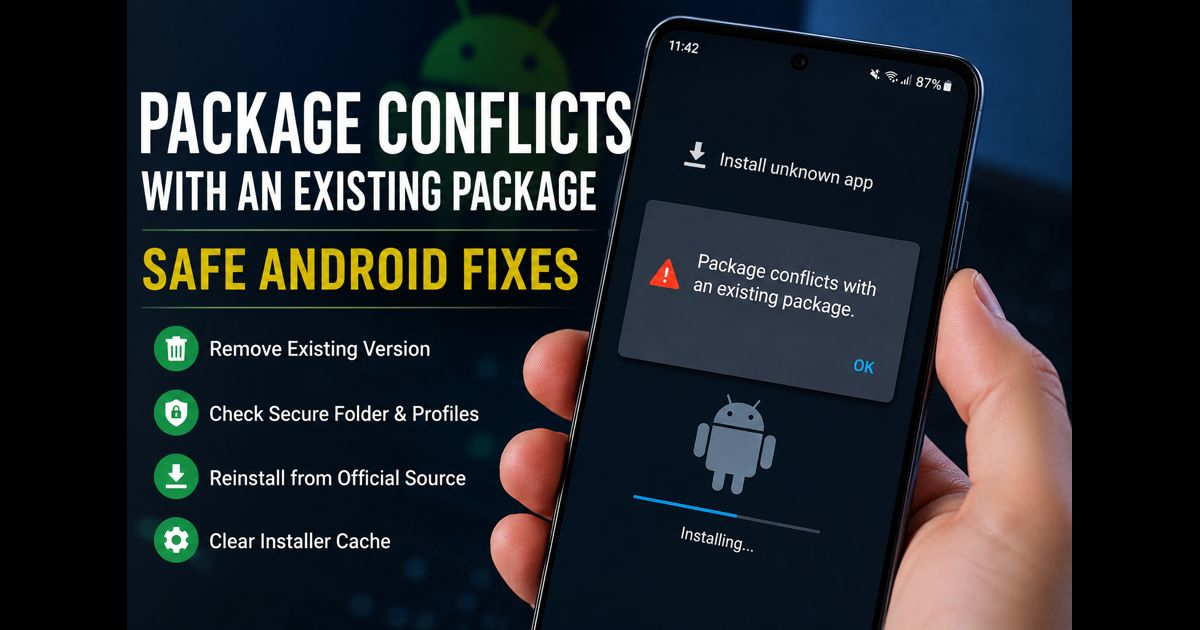
When Android says “package conflicts with an existing package,” it has detected an app on the device that uses the same Android application ID but cannot be replaced by the file you are trying to install.
The usual reason is a signing mismatch. Android will update an installed app only when the incoming APK has the same application ID and was signed with the same signing certificate. A Play Store version, an older direct-download version, a modified build, a work-profile copy, or an app in Samsung Secure Folder can all create this conflict.
The safest fix is to identify the existing copy, protect any important app data, remove the conflicting installation where appropriate, and install the app again from its official source.
Start with the safest checks
Before uninstalling anything, confirm that the file comes from the app’s official developer or a trusted store. A package conflict is not proof that the file is harmful, but unofficial modified files are often signed differently from the original app and cannot update it.
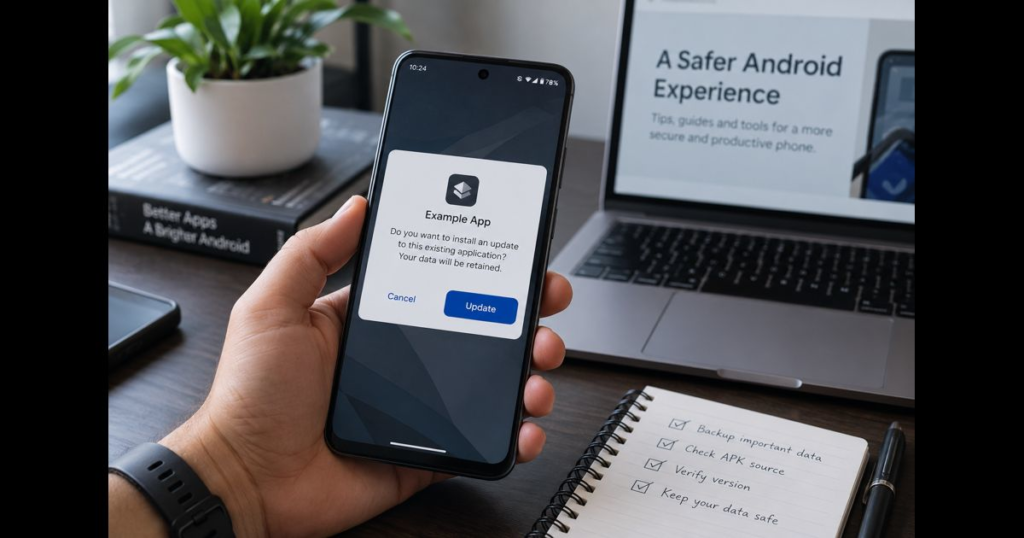
If the app contains important local data, first check whether it offers cloud sync, account backup, or an export option. Uninstalling an app can remove locally stored information.
Then restart the phone and try the installation once more. A restart does not solve a signature mismatch, but it can clear a stalled installer process.
Remove the existing version from Apps settings
Open Settings, then go to Apps or Applications. Use the app list and the built-in search field to locate the app you are trying to install.
Check for related editions as well:
- A free, premium, beta, trial, legacy, or regional version
- A previous modified version
- A version installed from the Play Store
- An older app with the same icon or publisher name
Open the matching result and select Uninstall. Do not merely remove its home-screen icon; that does not uninstall the application.
After removing it, restart the device and install the intended version again.
Check Samsung Secure Folder, work profiles, and cloned apps
An app may be installed in a separate Android space and therefore not appear in the main app list.
On Samsung phones, open Secure Folder, unlock it, and check its Apps list for the conflicting app. Remove the copy there if it is no longer needed.
Also check whether the phone has:
- A work profile managed by an employer or school
- A second user profile
- A cloned-app feature such as Dual Apps, App Twin, or Parallel Apps
- A private space or similar feature on newer Android versions
A copy in one of these areas may block installation in the main profile when Android identifies it as a conflicting package.
Understand the Play Store and APK signing conflict
This error often appears when a Play Store installation is replaced with an APK from another source.
For an update to install over an existing app, Android needs both of the following to match:
- Application ID — the app’s unique Android identity, often written like com.example.app
- Signing certificate — the cryptographic identity used to authorize updates
The display name does not decide whether an app conflicts. Two apps can have different names and still conflict if they use the same application ID. Likewise, two APK files may appear to be the same app but fail to update each other because they were signed with different certificates.
If you want to move from a Play Store version to an official direct-download version, or the other way around, uninstalling the existing version is often necessary. Back up data first because Android normally cannot keep app data when the signatures differ.
Do not assume “same developer” causes the conflict
Different apps made by the same company can coexist normally. Android does not block an installation simply because another app has the same publisher.
The conflict is about package identity and signing, not the developer name shown in the store. This distinction matters because removing unrelated apps from the same developer is unlikely to help and may cause unnecessary data loss.
Clear Package Installer cache only after checking the installed app
If the existing app has been removed and the error persists, clearing the installer cache can be a reasonable next step.
Go to Settings > Apps. Open the menu that shows system apps, then find Package Installer, Package Manager, or the phone maker’s installer service. Select Storage and choose Clear cache.
Do not clear storage for unrelated apps or remove system components. Clearing the installer cache is a limited troubleshooting step; it does not bypass Android’s signature protections.
Restart the device before attempting the installation again.
Check whether the app is preinstalled
Some apps are included with the phone’s system software. In that case, selecting Uninstall may only remove updates while the factory version remains installed.
If Android treats the incoming APK as a different-signed version of that built-in app, it may refuse installation. The safest options are to update the existing system app through Google Play, Galaxy Store, or the device maker’s update channel, rather than trying to replace it with an unrelated APK.
Avoid tools or commands that remove preinstalled system apps unless you fully understand the consequences. Removing a required system package can break phone features, updates, or security functions.
For split APK and app-bundle downloads
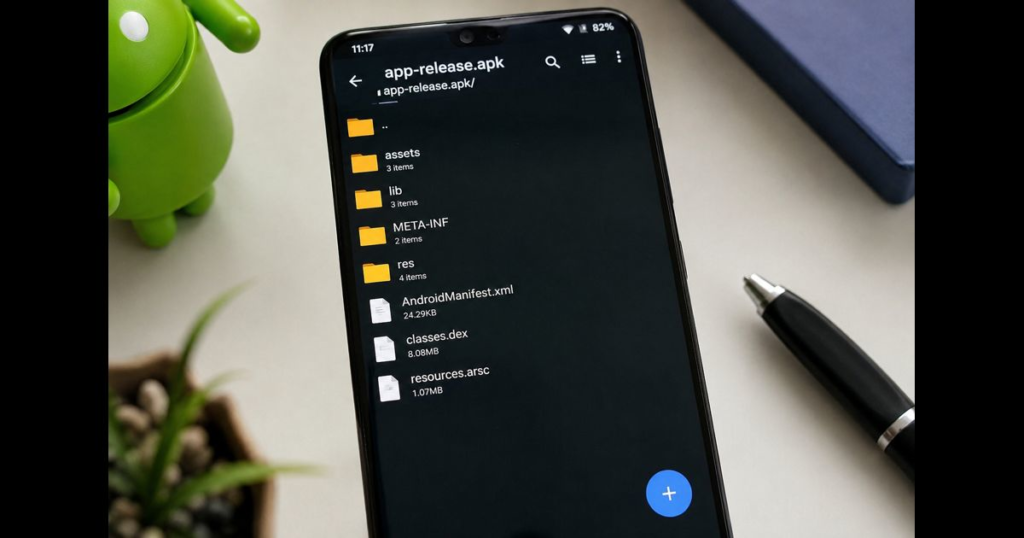
Some Android apps are delivered as multiple files rather than one standalone APK. These may include a base APK plus device-specific configuration files.
Installing only one component can fail or produce a different installation error. Download the complete package only from a reputable source and use the installation method provided by the app’s official publisher. Do not mix files from different releases or sources.
Advanced diagnosis with ADB
If the conflict continues after checking every profile and app space, ADB can reveal a more specific installation failure.
This method is best for experienced users and app developers. Enable Developer options and USB debugging only on a computer you trust. Then run:
adb install app.apk
ADB may return a detailed failure message, such as an incompatible signature or a package already installed for another user. That information can help confirm whether the issue is caused by signing, a hidden profile, or an incomplete installation package.
For an app you are developing, do not change the package name merely to hide the underlying problem. Confirm that release builds use the correct application ID and signing key. If the installed version came from Google Play, internal testing is usually a safer way to test updates than manually installing a differently signed build.
Fixes that are best avoided
Do not use random APK “fixers,” package editors, or cleaner apps that claim to remove conflicts automatically. They can alter files, request excessive permissions, or create new installation problems.
Avoid modified APKs when an official version is available. A modified file may be signed with a different certificate, may not receive trusted updates, and can expose the device or personal data to unnecessary risk.
For reliable Android guidance on choosing trusted files and understanding installation issues, read APKProTech.com’s Android app research and review process.
When the error is resolved
Install the app once, open it, and confirm that it works normally. If the app has an official store listing, turn on automatic updates so future versions arrive through the same signing channel.
Keeping one trusted installation source for each app is the simplest way to avoid this error in the future.





Leave a Reply