An APK can appear to install successfully yet fail when you tap its icon. The app may show a blank screen, close immediately, remain stuck on its loading screen, or display a repeated “keeps stopping” message.
This does not point to one universal problem. The APK may be incomplete, incompatible with the device, dependent on missing files or services, or unable to use existing app data. Start with reversible checks and leave data clearing or reinstallation until later because those actions can remove locally stored information.
Why an Installed APK May Still Fail to Open
Installation confirms that Android accepted the package, but it does not prove that every part of the app can run correctly. Some problems only become visible when the app begins loading its code, native libraries, stored data, external assets, or online services.
The symptom can offer an initial clue:
| What happens | Possible explanation |
| App closes immediately | Runtime crash, missing native library, damaged app data, or defective build |
| Blank or partially loaded screen | WebView problem, unavailable service, missing assets, or network failure |
| App remains on the loading screen | Server problem, account issue, missing files, or failed dependency |
| Features fail after permission prompts | A required permission may have been denied |
| App worked before an update | Incompatible data migration, update defect, or changed dependency |
| Sideloaded copy fails while the official release works | Incomplete package, wrong variant, modification, or signing difference |
These are diagnostic clues rather than proof. Different faults can produce similar behavior.
Check Whether the App Closes Immediately
An app that opens briefly and then returns to the home screen has usually encountered a runtime error. Android may also show an “App keeps stopping” notice, although the exact message varies by device and Android version.
Begin with simple checks:
- Force stop the app and open it again.
- Restart the phone.
- Confirm that the device has usable free storage.
- Check whether the app and Android have available updates.
- Test the app with a stable internet connection if it requires online access.
Google’s Android app troubleshooting guidance similarly recommends restarting, updating, force stopping, and checking the app again between steps.
If the problem affects only one sideloaded APK, examine that package before making broad changes to the phone.
Confirm Android Version and Device Compatibility
An APK may install but fail at runtime if the app depends on APIs, hardware features, graphics capabilities, or system behavior unavailable on the device. Compatibility can also be affected by the Android version, device form factor, chipset, or whether the app expects Google services.
Check the developer’s official requirements where available. Avoid relying only on a filename such as “universal” or “Android 8+,” because filenames can be incomplete or changed by distributors.
A broader APK compatibility check can help distinguish operating-system requirements from package-format and processor problems.
Compatibility is especially likely to be the issue when:
- The same APK fails on one device but works on another.
- The app is significantly older than the Android version on the phone.
- The app was built for phones but is being used on a TV, emulator, Chromebook, or another device category.
- The app depends on hardware or system services the device does not provide.
Installing an older Android release is not a safe general solution. If the developer no longer supports the device, there may be no reliable user-side fix.
Verify the APK Architecture and ABI
Apps containing native C or C++ libraries may provide different builds for different processor architectures. Common Android ABIs include arm64-v8a, armeabi-v7a, x86, and x86_64.
If the required native library is unavailable for the device’s supported ABI, installation may be rejected. In some packaging situations, however, the app may install and then fail when it attempts to load a missing or unusable native library.
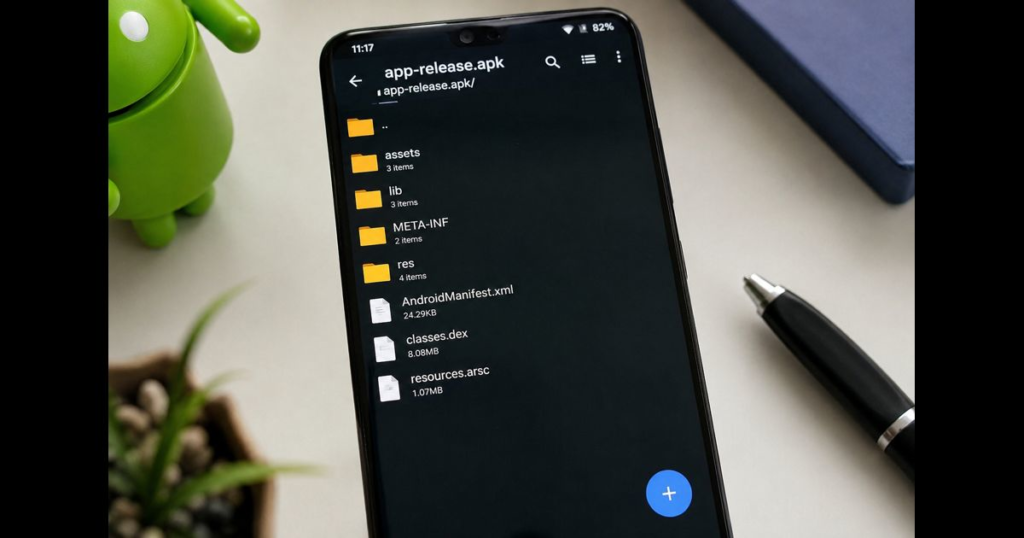
Inspect the APK architecture instead of assuming that the device ABI and APK ABI are the same thing. The device reports which ABIs it supports, while the APK’s own native libraries are normally stored under paths such as:
lib/arm64-v8a/
lib/armeabi-v7a/
lib/x86/
lib/x86_64/
The official Android ABI documentation explains how Android identifies and loads native libraries. Choose a release that explicitly supports the device, preferably from the developer’s official distribution channel.
Check for Missing Split APK Components
Many apps are distributed as several related APKs rather than one standalone file. A package set may contain:
- A base package
- Processor-specific code
- Screen-density resources
- Language resources
- Feature modules
Google Play generates device-specific APK combinations from an Android App Bundle. When the Play Store performs the installation, it supplies the required components for that device. A manually extracted or copied package may not contain the same complete set.
Files using split APK formats must be installed as the package type requires. Renaming an .apks, .apkm, or .xapk archive to .apk does not turn it into a complete standalone APK.
Android’s App Bundle documentation states that partial sideloaded installations missing required splits fail on Google-certified devices and on devices running Android 10 or later. Behavior on older, uncertified, or unusual environments may differ.
Why Installing Only the Base Package Is a Problem
The base APK contains the core portion of a split application, but it may depend on configuration or feature splits. It should not automatically be treated as a complete installer.
If you extracted only base.apk from an installed app or package archive, obtain the complete package set from a legitimate source. Use the installation method supplied by the developer or install the official store release where possible.
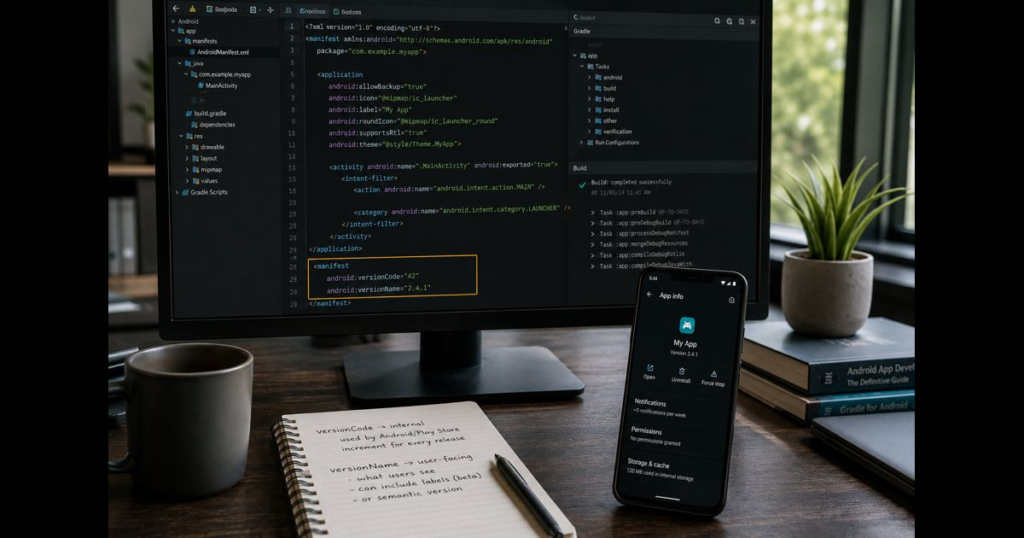
Do not combine split files taken from different app versions. Components intended for different releases may have incompatible version codes, resources, or signatures.
Confirm Whether the App Requires OBB Data
Some older games and large apps use expansion data in addition to the APK. This data may contain graphics, audio, maps, or other resources required after launch.
A missing, incomplete, or mismatched OBB file can leave an app stuck on a loading screen or unable to access required content. The APK and expansion data must belong to the same legitimate release. An OBB copied from another version should not be assumed to work.
Modern App Bundles do not use APK expansion files, and newer apps may deliver large assets through other systems. Therefore, do not download an OBB merely because an app will not open. First confirm through the developer’s documentation that the specific release actually uses expansion data.
If the official app is designed to download its assets after installation, open it on a stable network and allow the download to complete. Avoid granting unrelated storage access or downloading replacement files from unverified websites.
Replace a Corrupted or Incomplete Download
A file can be damaged during downloading, transferring, extracting, or storage. It may also be incomplete even though its filename ends in .apk.
Delete only the questionable installer file, then download a fresh copy from the developer’s official website or another distribution channel identified by the developer. If the source publishes a cryptographic checksum, compare it with the downloaded file.
Do not repeatedly install copies from different unofficial websites. Apart from increasing security risk, different sites may distribute different versions, signatures, architectures, or incomplete split packages under similar filenames.
Update Android System WebView and Google Play Services When Relevant
Some apps display sign-in pages, help content, payments, or other web-based interfaces through Android System WebView. A disabled, outdated, or malfunctioning WebView implementation can contribute to blank screens or crashes in apps that depend on it.
If Android System WebView appears on the device, check its official Play Store page for an update. On devices where Chrome participates in providing web-rendering components, update Chrome as well. Do not install a WebView APK from an unrelated source.
Some apps also depend on Google Play services for features such as authentication, location, notifications, or integrity checks. Check for an official Google Play services update if the device includes it. A device without Google Mobile Services cannot necessarily run every app that requires those APIs.
Updating these components is a targeted step, not a universal fix. It is most relevant when multiple apps with web content or Google-dependent features fail in a similar way.
Review Denied Permissions
Android allows users to deny or revoke many permissions. A properly designed app should handle denial gracefully, but an app with inadequate error handling may fail when it cannot access a resource it expects.
Open the app’s information screen and review its permissions. Grant only permissions that clearly match the feature you are trying to use. For example, a camera feature may require camera access, while importing a local file may require access provided through Android’s file picker.
Do not enable every permission simply to test whether the app opens. Requests for contacts, SMS messages, accessibility access, device administration, or broad file access deserve particular scrutiny when they are unrelated to the app’s stated function.
If a permission does not appear in Settings, the app may not have requested it yet, the Android version may handle it differently, or the app may be using another access mechanism.
Check Free Storage and Clear Cache Safely
Low storage can prevent an app from creating temporary files, extracting resources, updating databases, or downloading required data. Android may also limit some background operations when storage is critically low.
Remove unneeded files or apps through normal device settings, then restart the phone and test again. Leave additional space beyond the size of the APK because an installed app can require room for extracted code, cache, updates, and user data.
You can also try clearing the app’s cache:
- Open Settings.
- Select Apps or the equivalent menu on the device.
- Choose the affected app.
- Open Storage & cache.
- Select Clear cache.
- Try opening the app again.
Menu names vary by manufacturer. Clearing cache removes temporary files and is different from clearing storage or app data.
Consider Incompatible Data from a Previous Version
An app update may need to migrate databases, preferences, account state, or downloaded files. If the new release contains a migration defect, or if an unsupported downgrade was attempted, existing data may no longer match what the installed version expects.
This is more likely when:
- The previous release worked correctly.
- The problem began immediately after an update or downgrade.
- The same release opens normally after a clean installation on another test device.
- The crash occurs while the app is loading saved content.
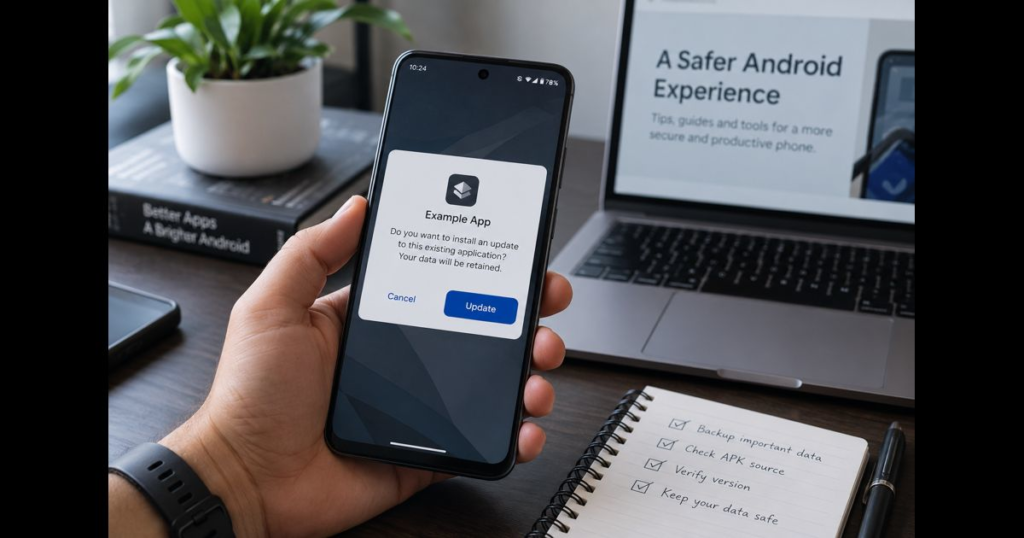
Whenever possible, use the app’s own export or synchronization feature before changing the installation. The process for trying to update an APK without losing data also depends on package identity, version rules, and signing compatibility.
Back Up Before Clearing Data or Uninstalling
Clearing storage can erase local databases, settings, offline files, sessions, and unsynchronized progress. Uninstalling can also remove app data. Whether Android or the app can restore that information depends on the app’s backup and account design.
Before taking either action:
- Use the app’s export option if it can still be reached.
- Confirm that important information has synchronized to the correct account.
- Copy user-accessible documents or media that belong to you.
- Check whether the developer provides a supported backup method.
- Make sure you know the account credentials and any recovery requirements.
Do not promise that a device-level backup will preserve every app’s data. Developers can restrict backup behavior, and some protected or locally encrypted information may not be transferable.
If no backup exists and the data matters, stop before clearing storage and contact the developer.
Check Whether the App’s Online Service Still Exists
Some apps depend on remote servers for account verification, content, licensing, or essential processing. If that service has been discontinued, moved, or temporarily interrupted, reinstalling the APK may not restore functionality.
Look for information on the developer’s official website, store listing, support page, or verified status channel. A random “server fix” APK is not a dependable solution.
A server-dependent app may show an error or remain at its loading screen. Poorly handled network failures can also cause some builds to close, but an immediate crash alone does not prove that the server has shut down.
If the service has permanently ended and no supported offline mode exists, the installed client may no longer be usable.
Be Cautious with Modified or Incorrectly Signed Builds
Android uses app signing to establish the identity of an application and to control whether one release can update another. An update signed by an incompatible key is normally rejected rather than installed over the existing app.
Therefore, a signing difference is not usually the direct explanation for an app that installed and then started crashing. It may instead indicate that:
- The old app had to be removed before the new package could be installed.
- The installed copy came from a different distributor.
- Existing data was restored into a build that was not designed for it.
- The APK was modified incorrectly.
- Code or resources were damaged during repackaging.
Modified builds may also contain undocumented changes or malicious code. Do not disable Android security protections merely to make an unknown package run. The official Android app-signing documentation explains why consistent signing identity matters across releases.
When the official release works but a modified copy does not, use the official release.
A Safe Troubleshooting Order
Use the following sequence to avoid unnecessary data loss:
- Confirm the source. Verify that the APK came from the developer or a distribution channel the developer identifies.
- Restart and retry. Force stop the app, restart the phone, and test it again.
- Check the network. Use a stable connection if the app requires online content, sign-in, or asset downloads.
- Install available updates. Check Android, the app, Android System WebView, Chrome, and Google Play services where relevant.
- Review compatibility. Confirm the supported Android version, device type, hardware requirements, and ABI.
- Inspect the package format. Determine whether the download is a standalone APK or a split package that requires all of its components.
- Confirm additional assets. Check the developer’s instructions for expansion data or other required downloads.
- Review relevant permissions. Grant only access needed for the app’s documented functions.
- Free storage and clear cache. Test again without clearing app storage.
- Back up important data. Use supported export or synchronization options before destructive steps.
- Clear app storage only if acceptable. This can help with damaged or incompatible local data but removes local information.
- Reinstall the correct official release. Use this after confirming that important data is backed up or expendable.
- Contact the developer. Provide the device model, Android version, app version, source of the release, and an accurate description of the failure.
Test the app after each step. If it begins working, there is no reason to continue with more disruptive actions.
Using ADB Logcat for a Limited Diagnosis
Advanced users and developers can use adb logcat to view Android system and application logs. Logcat does not repair the app; it can reveal what happened when the process failed.
After installing Android platform tools and authorizing USB debugging on a device you control, start log capture, reproduce the crash, and inspect entries around the time of failure. Useful indicators can include:
- FATAL EXCEPTION
- AndroidRuntime
- SecurityException
- UnsatisfiedLinkError
- ClassNotFoundException
- A package-specific process name
For example:
adb logcat
Because an app that closes immediately may also terminate its process before a process-only filter is applied, beginning capture before opening the app is often simpler.
A log entry needs interpretation. UnsatisfiedLinkError, for example, may point toward a missing or unloadable native library, but the surrounding lines are needed to understand why. Do not treat the first warning as the root cause.
Logs may expose account identifiers, filenames, device details, application data, or other sensitive information. Review and redact them before sharing a short relevant excerpt with the developer. Avoid posting a complete log publicly. Google’s official logcat documentation provides the supported command options and filtering syntax.
When to Use the Developer’s Official Release
Use the official release when:
- The package source or integrity cannot be confirmed.
- Only the base portion of a split app was obtained.
- The available APK does not match the device ABI.
- A modified build crashes while the official version works.
- Required expansion data cannot be verified.
- The app depends on Play-delivered components.
- Signing conflicts prevent a normal update.
- An unofficial package asks for permissions unrelated to its purpose.
The official Play Store version is usually the simplest option when available because the store selects the required APK components for the device. If the developer distributes APKs directly, follow the instructions on the developer’s verified website and choose the stated device variant.
Final Check
An APK that installs but will not open should not be repaired by randomly downloading more files, granting every permission, or immediately deleting app data. First confirm compatibility, architecture, package completeness, required assets, dependencies, storage, and service availability.
Clear storage or reinstall only after protecting any important local data. If the correct official release still closes immediately, a concise crash description—and, where appropriate, a carefully redacted logcat excerpt—will be more useful to the developer than repeated installation attempts.





Leave a Reply