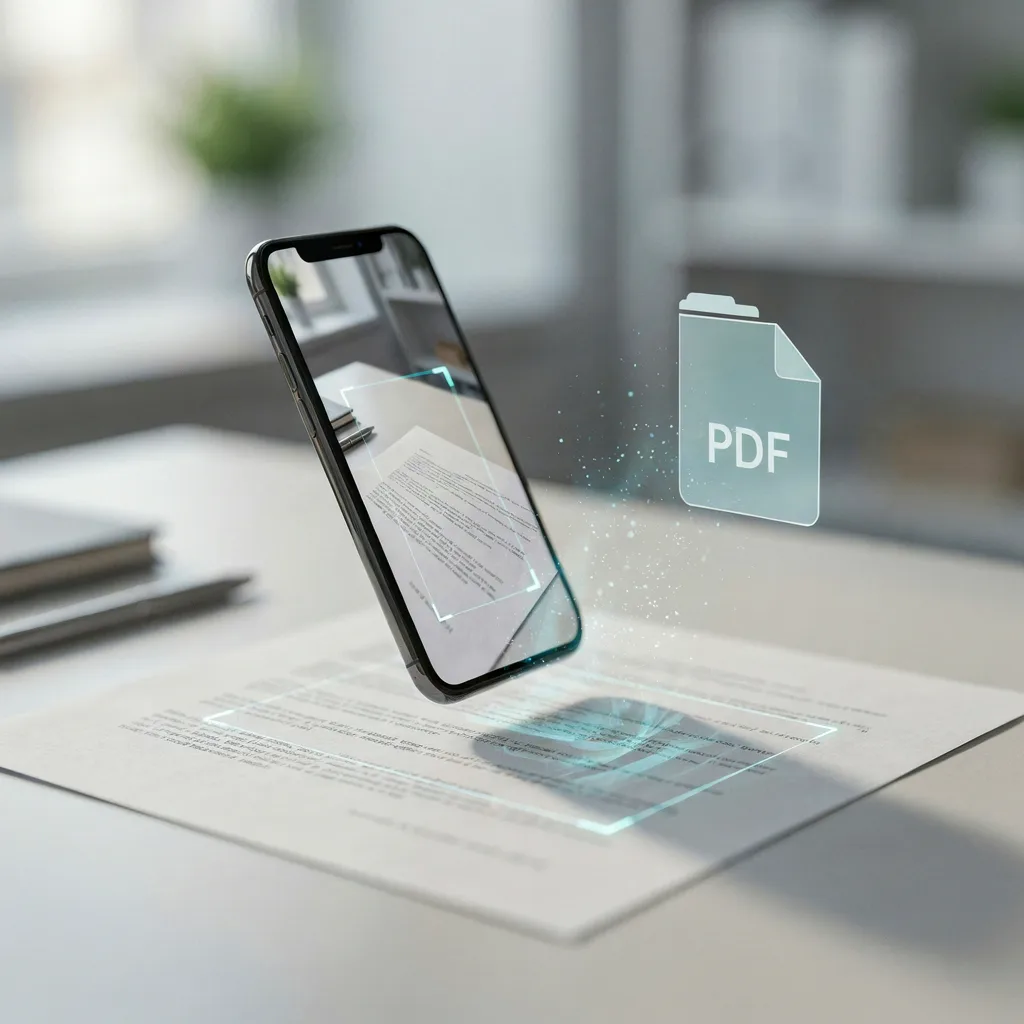
You do not need a traditional scanner to create a digital copy of a document. If you have an iPhone, you can scan documents directly from your phone and save them as digital files. The built-in features in iOS make it possible to scan receipts, forms, notes, invoices, IDs, and other paperwork without paying for a separate scanning service.
If you are looking for how to scan on iPhone for free, there are several simple options. Apple’s built-in Notes app is one of the easiest methods, while apps such as Google Drive can also provide scanning features.
For more options, you can also check our guide to the best scanner apps for iPhone.
Can You Scan Documents on an iPhone for Free?
Yes. You can scan documents on an iPhone without buying a scanner or paying for an app subscription.
The easiest option is Apple’s Notes app. It includes a document scanning feature that uses the iPhone camera to detect the edges of a document, capture the page, and save the result inside a note.
This makes the iPhone useful for quickly creating digital copies of paperwork while you are at home, school, work, or traveling.
Apple also provides official guidance about scanning documents with Notes through its Apple Support resources.
How to Scan Documents on iPhone for Free
The Notes app is usually the simplest way to scan a document without installing another application.
Step 1: Open the Notes App
Open the Notes app on your iPhone and create a new note or open an existing note.
Step 2: Open the Camera Menu
Tap the attachment or camera option inside the note. Depending on your iOS version, you may see an option called Scan Documents.
Select Scan Documents to activate the iPhone camera.
Step 3: Position the Document
Place the document on a flat surface and point your iPhone camera toward it.
Try to keep the entire page inside the camera view. Good lighting will help the phone detect the document edges and produce a clearer scan.
Step 4: Capture the Document
Your iPhone may automatically detect the document and capture it. You can also manually take the picture if automatic scanning does not work.
After capturing the page, you can adjust the corners if necessary.
Step 5: Scan Additional Pages
If your document contains multiple pages, continue scanning each page before finishing.
The pages can be stored together as one scanned document.
Step 6: Save the Scan
Tap Save when you have finished scanning.
Your scanned document will remain available inside the Notes app, where you can view or share it later.
How to Use iPhone as a Scanner
Using an iPhone as a scanner is particularly useful when you need to digitize paperwork quickly.
Instead of taking an ordinary photograph, a scanning feature can detect the document boundaries and create a cleaner digital copy.
You can use your iPhone to scan:
- Receipts
- School notes
- Business documents
- Invoices
- Forms
- Contracts
- Printed letters
- Handwritten notes
- Multi-page documents
For everyday paperwork, an iPhone scanning app or the built-in Notes scanner can often replace the need for a physical scanner.
How to Scan a Document and Save It as a PDF
One of the main reasons people scan documents on an iPhone is to create a PDF.
After scanning a document, you can use the sharing options available on your iPhone to save or send the scanned file.
A PDF is useful when you need to:
- Email a document
- Submit paperwork online
- Send an invoice
- Upload a form
- Store important records
- Share multiple pages as one file
If you regularly work with PDFs, a dedicated PDF scanner app for iPhone may provide additional features such as organization, editing, OCR, and cloud storage.
Can Google Drive Scan Documents on iPhone?
Google Drive can also be useful for people who want to scan and store documents through Google’s cloud ecosystem.
If you already use Google Drive for storing files, it can be convenient to keep scanned documents alongside your other cloud files.
You can learn more about Google’s cloud storage service on the official Google Drive website.
The exact scanning options can vary depending on the version of the app and device, so make sure your Google Drive app is updated before looking for scanning features.
How to Get Better iPhone Scans
The quality of your scan depends partly on how you capture the document. A few simple changes can make a noticeable difference.
Use Good Lighting
Place the document somewhere with sufficient light. Avoid strong shadows across the page.
Natural light can work well, but direct sunlight may create glare on glossy documents.
Keep the iPhone Steady
Hold the phone directly above the document when possible.
Keeping the camera steady helps produce sharper scans and makes it easier for the scanning feature to identify the page.
Use a Flat Surface
Put the document on a flat, contrasting surface. Avoid scanning papers while they are folded, wrinkled, or partially covered.
Clean the Camera Lens
A dirty camera lens can make text look blurry. Quickly cleaning the lens before scanning can improve the result.
Check the Corners
After capturing a document, check whether all four corners have been detected correctly.
If necessary, manually adjust the scanning boundaries before saving the document.
iPhone Camera vs Document Scanner
You can technically photograph a document with the normal Camera app, but a document scanner is generally more convenient when you want a clean digital copy.
A normal photograph may include the surrounding table, shadows, or perspective distortion.
A scanning feature is designed specifically for documents and can automatically detect their edges and create a more organized result.
For occasional paperwork, the built-in iPhone scanner is usually enough. For frequent scanning, a dedicated app can provide additional tools.
Do You Need a Paid Scanner App?
Not necessarily.
If your main requirement is simply to scan documents and create digital copies, the built-in iPhone tools may be sufficient.
Paid or subscription-based scanning apps become more useful when you need advanced features such as:
- OCR text recognition
- Advanced PDF editing
- Cloud integrations
- Document organization
- Batch processing
- Digital signatures
- Additional export options
Before paying for an app, try the free scanning features already available on your iPhone.
What Is the Best Free Way to Scan on iPhone?
For most basic scanning tasks, the built-in Notes app is one of the easiest free options.
It does not require you to purchase a physical scanner, and you can start scanning documents directly from your iPhone.
If you need more advanced functionality, you can compare different free scanner apps for iPhone and choose one based on the features you actually need.
Frequently Asked Questions
Can I scan a document on my iPhone without an app?
Yes. The Notes app includes a built-in document scanning feature, so you can scan documents without installing a separate scanner application.
Can I scan multiple pages on an iPhone?
Yes. You can scan multiple pages and keep them together as one document.
Can an iPhone scan documents into PDF?
Yes. Scanned documents can be saved and shared as digital documents, including PDF files through the available sharing and file options.
Is scanning on iPhone free?
Yes. You can use the built-in document scanning feature without paying for a separate scanner subscription.
What is the easiest way to scan documents on iPhone?
For most users, the Notes app is one of the simplest options because it is already available on the iPhone and does not require another scanner application.
Final Thoughts
Learning how to scan on iPhone for free can save time and eliminate the need for a traditional scanner for many everyday tasks. Apple’s built-in Notes scanning feature is a convenient starting point for receipts, forms, notes, invoices, and other documents.
If you need more advanced tools, you can explore dedicated scanner applications and compare their PDF, OCR, storage, and document management features.
For a broader comparison of available options, see our guide to the best scanner apps for iPhone.





Leave a Reply