iOS 26 brings a new generation of features to the iPhone, combining a redesigned interface with improvements to communication, personalization, intelligence, privacy, and everyday productivity.
For many users, the most interesting part of a major iOS release is not simply the visual redesign. The real value comes from how new system features work with the apps you use every day.
Whether you use your iPhone for work, study, photography, communication, entertainment, or organization, iOS 26 offers several areas worth exploring.
This guide explains the important iOS 26 features and the types of apps that can make the most of your iPhone.
What Is New in iOS 26?
iOS 26 introduces a major visual refresh alongside improvements across several core iPhone experiences.
The update focuses on areas such as:
- A redesigned interface
- More personalized system experiences
- Messages improvements
- Phone and communication features
- Apple Intelligence
- Updated built-in applications
- Privacy and security
- Better integration between apps and system features
The exact features available can vary depending on the iPhone model, region, language, and supported services.
The New iOS 26 Design
One of the first things users notice after installing iOS 26 is the new visual language.
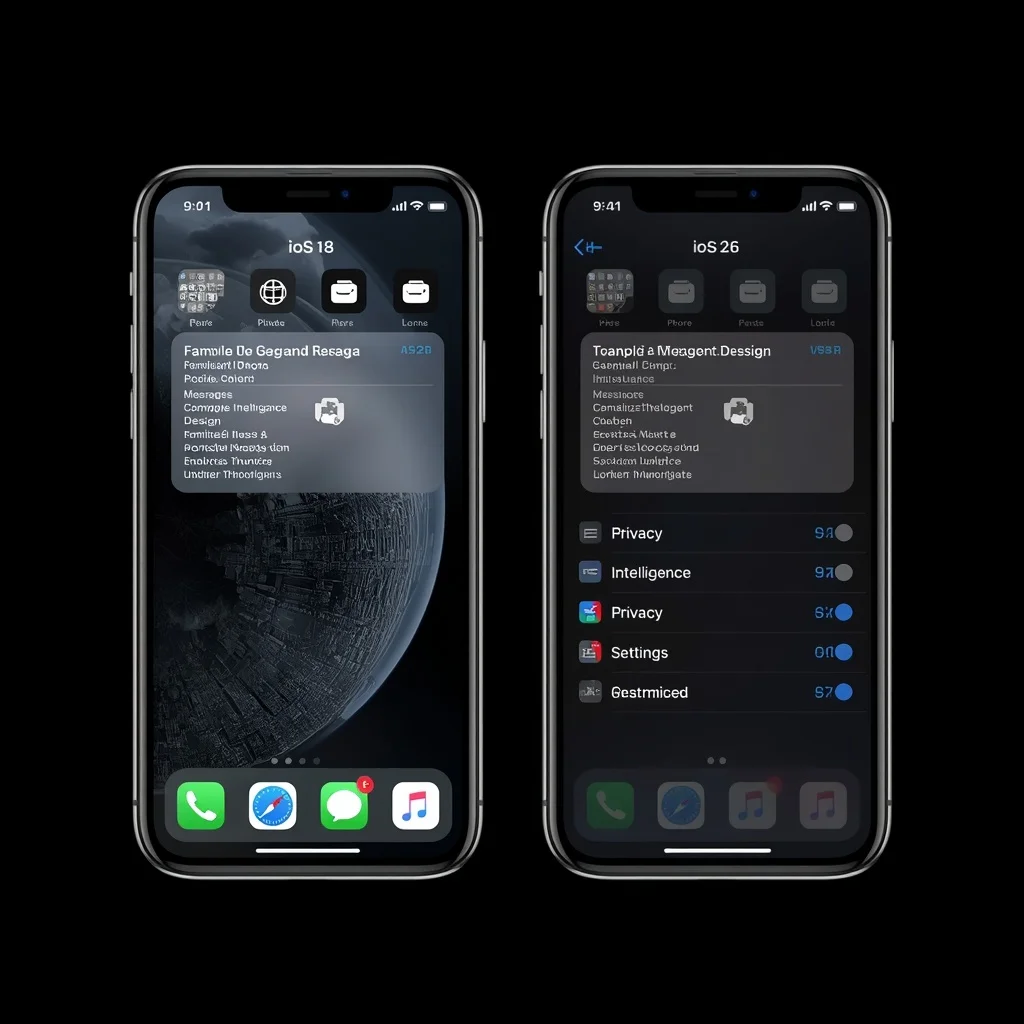
Apple has introduced a more translucent and dimensional appearance across parts of the operating system. Interface elements, navigation areas, controls, and system applications have been updated to create a more unified look.
This affects more than the Lock Screen or Home Screen. The visual changes can be seen throughout the operating system.
For users who prefer a familiar interface, the redesign may initially take some adjustment. For others, it provides a more modern appearance and stronger visual consistency.
iOS 26 Personalization
Personalization remains an important part of the iPhone experience.
Users can customize elements such as:
- Home Screen arrangement
- Lock Screen
- Widgets
- Control Center
- Focus modes
- App appearance
The newer design gives these customization options a different visual context.
Instead of treating personalization as a separate feature, iOS 26 integrates it more closely into the overall interface.
Apple Intelligence in iOS 26
Apple Intelligence continues to be one of Apple’s major software initiatives.
On compatible iPhone models and supported configurations, intelligence features can assist with tasks involving writing, communication, information, and image-related experiences.
Potential uses include:
- Writing assistance
- Summarizing information
- Generating or modifying certain images
- Understanding content
- More natural interactions with system features
- Assistance across supported applications
Not every iPhone supports Apple Intelligence. The available capabilities can also depend on language and region.
Before expecting an AI feature to appear on your iPhone, check Apple’s current compatibility requirements.
Visual Intelligence
Visual Intelligence is designed to help the iPhone understand information from what the camera sees or what is displayed on the screen.
Depending on the supported device and feature availability, visual intelligence can be useful for identifying information, interacting with objects or text, and obtaining relevant information.
This type of feature is particularly interesting because it moves AI beyond a traditional chatbot interface.
Instead of typing a question, users can potentially start with something they are looking at and use the iPhone to understand it.
Messages Improvements in iOS 26
Messages remains one of the most frequently used iPhone applications, so changes to it can have a noticeable everyday impact.
iOS 26 introduces additional communication capabilities and continues Apple’s work on improving messaging.
Depending on the conversation and supported services, users can benefit from features related to:
- Conversation customization
- Group communication
- Messaging with different platforms
- Enhanced interaction
- New visual effects and experiences
Some capabilities depend on whether the recipient uses an Apple device, supports compatible messaging standards, or is located in a region where the feature is available.
Phone App Improvements
The Phone app also receives attention in Apple’s newer software experience.
Calling is no longer treated simply as a basic voice function. Modern smartphones increasingly combine calls with identification, screening, recording, messaging, and other communication tools.
iOS 26 continues this direction with changes to the calling experience.
Users should still check regional availability because certain communication features can be affected by local requirements and regulations.
Updated Safari Experience
Safari remains one of the most useful applications on any iPhone.
With iOS 26, the browser benefits from the broader system redesign and continued improvements to browsing.
Safari can be used for:
- Research
- Shopping
- Online banking
- Web applications
- Reading
- Social media
- Cloud services
- Work tools
Because so many modern services are browser-based, Safari can sometimes eliminate the need to install a separate application.
The Best Built-In iPhone Apps to Use
Before downloading third-party applications, it is worth exploring the apps Apple already includes.
Apple Notes
Notes is useful for:
- Lists
- Meeting notes
- Study material
- Scanned documents
- Ideas
- Checklists
- Saved information
It also works closely with other Apple devices when synchronization is enabled.
Reminders
Reminders is useful for organizing:
- Tasks
- Shopping lists
- Projects
- Personal routines
- Deadlines
For many users, it can replace a separate task-management application.
Calendar
Apple Calendar can handle appointments, events, reminders, and schedules.
It becomes particularly useful when combined with other Apple services and accounts.
Files
The Files app provides a central place to manage documents and files stored locally or through supported cloud services.
It is useful for users who frequently download documents from Safari or work with files from different sources.
Shortcuts
Shortcuts can automate repetitive actions on an iPhone.
Examples include:
- Opening multiple applications
- Creating automated routines
- Processing information
- Controlling supported smart-home actions
- Running custom workflows
Users who enjoy automation can get considerably more value from Shortcuts than casual users.
Best Productivity Apps for iOS 26
The best productivity application depends on your workflow.
Microsoft 365
Microsoft’s ecosystem remains useful for users who work with Word, Excel, PowerPoint, and other Microsoft services.
It can be particularly useful for students and professionals who regularly exchange Office documents.
Official information is available through Microsoft 365.
Google Drive and Google Docs
Google’s productivity ecosystem is useful for people who collaborate through cloud documents and shared files.
Google Drive can provide access to documents, spreadsheets, presentations, and other files from an iPhone.
Notion
Notion can be useful for users who want one workspace for notes, projects, databases, documentation, and planning.
It can work particularly well for people managing multiple content or work projects.
Best Note-Taking Apps for iPhone
Apple Notes is already a powerful option, but some users may prefer third-party applications.
Popular categories include:
- Advanced note-taking
- Handwritten notes
- Markdown
- Knowledge management
- Collaborative documents
- Research organization
When choosing a note-taking application, look at synchronization first. A feature-rich app is less useful if it does not work reliably across the devices you actually use.
Best Photo and Video Apps
The iPhone is widely used for photography and video, and iOS 26 provides a platform for both Apple’s built-in tools and third-party applications.
Photos
Apple Photos remains the central application for organizing an iPhone photo library.
It supports:
- Albums
- Search
- Editing
- Memories
- Sharing
- Photo organization
Professional Camera Apps
Third-party camera applications can provide additional manual controls, depending on the model and application.
These may include:
- Manual exposure
- Focus controls
- Shutter speed
- RAW capture
- Advanced video controls
They are more useful for photographers who want greater control than the standard Camera app provides.
Best AI Apps for iPhone
AI applications have become an important category on mobile devices.
Depending on your needs, an AI app can help with:
- Writing
- Research
- Brainstorming
- Summarization
- Translation
- Coding
- Image generation
- Document analysis
However, users should distinguish between AI features built into iOS and third-party AI applications.
Built-in system intelligence is integrated with Apple’s operating system, while third-party applications can offer their own models and specialized tools.
Best Security and Privacy Apps
iOS already includes significant security and privacy controls, so you should not automatically install a security application simply because it claims to protect your iPhone.
Instead, focus on using:
- Strong device passcode
- Two-factor authentication
- Password managers
- Secure browsing practices
- App permission controls
- Software updates
- Stolen Device Protection where available
Apple provides detailed information about its security technologies through its official Apple Platform Security documentation.
Best Cloud Storage Apps
Cloud storage can be useful for users who need access to documents across multiple devices.
Common options include:
- iCloud Drive
- Google Drive
- Microsoft OneDrive
- Dropbox
When choosing cloud storage, consider:
- Storage capacity
- Device compatibility
- Sharing features
- File synchronization
- Security
- Pricing
- Offline access
There is no need to subscribe to several services if one provider already meets your requirements.
Best Apps for Students
Students can use an iPhone for much more than communication.
Useful app categories include:
- Note-taking
- Flashcards
- Document scanning
- Cloud storage
- Calendar
- Task management
- Research
- Language learning
- AI assistance
The built-in Notes and Files applications can already handle many everyday student tasks.
If you need to scan physical documents, you can also see our guide on how to scan documents on iPhone.
Best Apps for Work
For professional use, useful applications depend heavily on your job.
A typical work setup may include:
- Calendar
- Microsoft 365
- Google Workspace
- Slack
- Zoom
- Teams
- Cloud storage
- Password manager
- Project management software
The important point is integration. An app that works smoothly with your company’s existing services can be more valuable than an application with a longer list of features.
Best Entertainment Apps
The iPhone can also serve as a portable entertainment device.
Popular categories include:
- Video streaming
- Music
- Podcasts
- Audiobooks
- Gaming
- Social media
The best choices depend on your subscriptions and personal preferences.
For entertainment-heavy use, display quality, speakers, battery life, storage, and network connectivity can matter more than installing a large number of applications.
iOS 26 App Permissions
Installing an application does not mean you should automatically grant it access to everything.
Review permissions for:
- Location
- Photos
- Camera
- Microphone
- Contacts
- Bluetooth
- Local network
- Notifications
If an application requests access that does not appear necessary for its function, consider whether it actually needs that permission.
You can review application access through the iPhone’s Privacy & Security settings.
How to Choose the Best Apps for iOS 26
Instead of installing dozens of applications, start with your actual needs.
Ask:
- What problem does the app solve?
- Do I already have a built-in Apple app that does the same thing?
- Does it work with my other devices?
- Does it require a subscription?
- What permissions does it request?
- Does it support offline use?
- Is the developer actively maintaining it?
- Does it synchronize reliably?
- Does it protect personal data appropriately?
This approach helps prevent an iPhone from becoming cluttered with applications that are rarely used.
Do You Need to Install More Apps After Updating to iOS 26?
Not necessarily.
A major iOS update can make existing built-in applications more capable, so it is worth exploring the features already available on the device before downloading alternatives.
For example, Notes, Reminders, Files, Photos, Calendar, Shortcuts, Safari, and other Apple applications can cover a surprisingly large number of everyday tasks.
Third-party applications make sense when they provide a capability, workflow, or service that Apple’s built-in tools do not meet well.
How to Keep iOS 26 Apps Secure
App security is not only about downloading from the official App Store.
You should also:
- Keep applications updated
- Review permissions
- Use strong account passwords
- Enable two-factor authentication where available
- Remove applications you no longer use
- Avoid suspicious links
- Check the developer before installing unfamiliar apps
- Be careful with apps requesting excessive personal information
Keeping both iOS and applications updated reduces exposure to known security issues.
Frequently Asked Questions
What are the main features of iOS 26?
Major areas include the redesigned interface, personalization, communication improvements, Apple Intelligence on supported devices, updated system applications, and continued privacy and security improvements.
What is the best app for iOS 26?
There is no single best app for everyone. The right applications depend on whether you need productivity, education, photography, communication, entertainment, AI, or another specific function.
Does every iPhone support all iOS 26 features?
No. Some features require newer hardware, while availability can also depend on language, region, and supported services.
Are third-party apps necessary on iOS 26?
No. Apple’s built-in applications can handle many everyday tasks. Third-party apps are most useful when they provide specialized functionality or a workflow that better matches your needs.
Are AI apps useful on iPhone?
AI apps can be useful for writing, research, translation, brainstorming, image creation, coding, and other tasks. Their usefulness depends on the quality of the service and the specific problem you are trying to solve.
Should I download multiple apps for the same task?
Usually not. It is often better to choose one reliable application that fits your workflow instead of installing several applications that perform nearly identical functions.
Final Thoughts
iOS 26 is more than a visual redesign. It combines a new interface with improvements to communication, personalization, intelligence, system applications, and privacy.
The best way to take advantage of the update is not to install as many new applications as possible. Start with Apple’s built-in tools, identify the tasks where you need additional functionality, and then select third-party apps that genuinely improve your workflow.
Whether you use your iPhone for work, study, photography, entertainment, or everyday organization, iOS 26 provides a broad platform for building a setup around your own needs.



Leave a Reply