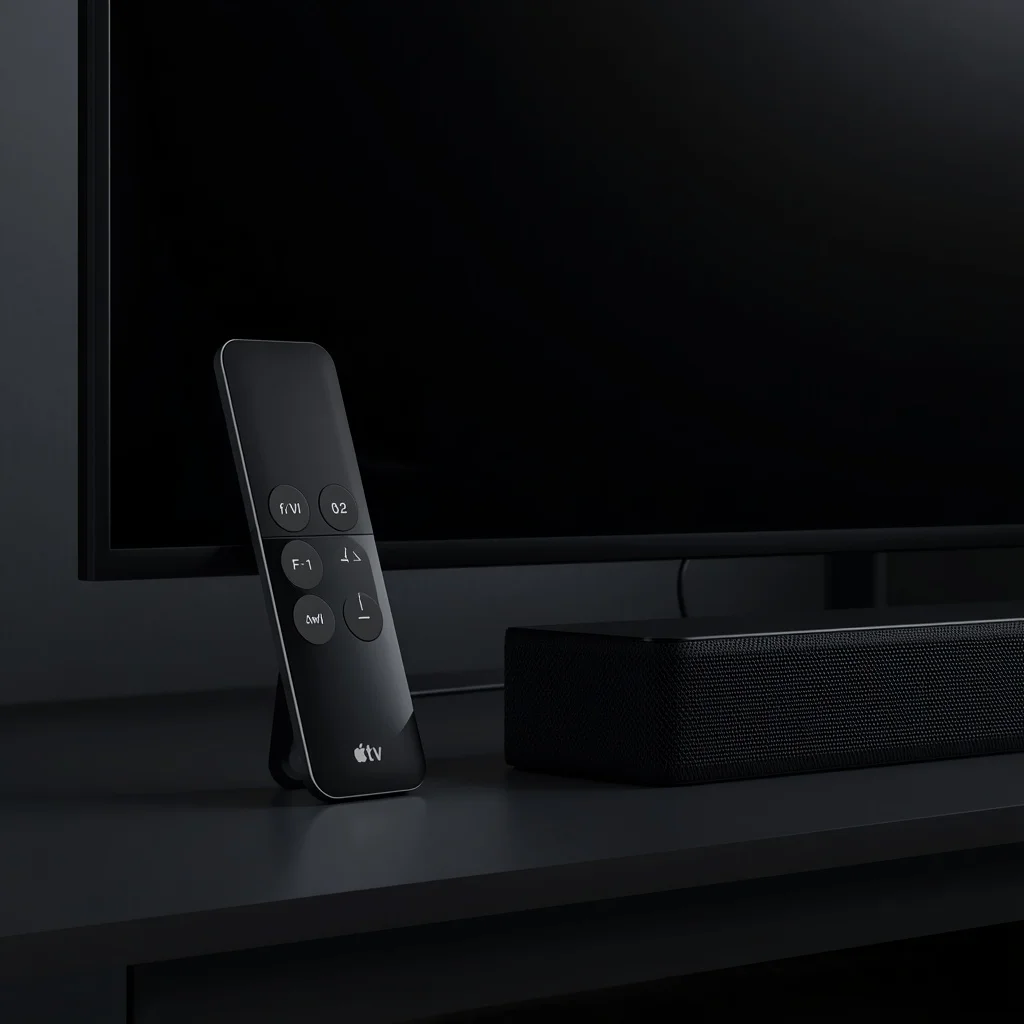
When your Apple TV remote volume is not working, the problem can be confusing because the remote may still control navigation, apps, playback, and other Apple TV functions normally. In many cases, the issue is related to the way the remote controls your television or audio device rather than the Apple TV itself.
The good news is that most Apple TV remote volume problems can be fixed by checking the remote settings, reconnecting the remote, restarting the devices, or setting up volume control again.
This guide explains the most common reasons your Apple TV remote volume is not working and the steps you can take to fix it.
Why Is My Apple TV Remote Volume Not Working?
The Apple TV remote uses different technologies and settings to control volume depending on your television or sound system.
Your remote may use HDMI-CEC, infrared (IR), or a compatible receiver to control the volume. If that connection is interrupted or configured incorrectly, the volume buttons may stop responding even though the rest of the remote continues to work.
Common causes include:
- Remote volume settings changed
- HDMI-CEC disabled on the TV
- Remote lost its connection
- Apple TV needs a restart
- Television or receiver is not responding
- IR sensor is blocked
- Sound output changed
- Remote needs to be reconfigured
- Temporary software issue
- Low remote battery
The correct solution depends on which type of setup you are using.
Check Whether the Remote Controls Other Functions
Before changing any settings, test the other buttons on your Apple TV remote.
Try:
- Moving around the Apple TV interface
- Opening an app
- Playing or pausing a video
- Returning to the previous screen
- Opening the Control Center
If these functions work but the volume buttons do not, the remote itself may not be completely disconnected. The problem is more likely related to volume control configuration or communication with the TV or receiver.
If the entire remote is unresponsive, you should first troubleshoot the remote connection.
Restart the Apple TV Remote
A simple remote restart can sometimes resolve temporary communication problems.
For a Siri Remote or compatible Apple TV remote, press and hold the TV/Control Center button and Volume Down button together for several seconds.
The status light on the Apple TV may turn off and back on while the remote restarts.
Wait briefly and then test the volume buttons again.
If the volume still does not work, continue with the steps below.
Restart Your Apple TV
The next step is to restart the Apple TV itself.
You can restart Apple TV through its settings:
Settings → System → Restart
After the Apple TV restarts, test the volume control.
A restart can clear temporary software or communication issues without changing your personal settings.
Check the Apple TV Remote Settings
Apple TV provides settings that determine how the remote controls your television or audio equipment.
Open:
Settings → Remotes and Devices → Volume Control
Depending on your setup and tvOS version, you may see different volume-control options.
If the setting is configured incorrectly, the remote may not be able to control your TV or receiver.
Try changing the volume-control method and test the remote after each change.
Try “Auto” Volume Control
If available, Auto is a useful setting to test because Apple TV can attempt to determine the appropriate method for controlling your connected equipment.
Go to:
Settings → Remotes and Devices → Volume Control
Then select Auto if it is available.
Press the volume buttons and check whether the television or audio system responds.
If Auto does not work, you may need to configure the remote manually.
Check HDMI-CEC on Your TV
HDMI-CEC is an important part of many Apple TV setups.
CEC allows compatible HDMI devices to communicate with each other. Different television manufacturers use different names for this feature.
For example, manufacturers may call their CEC implementation:
- Samsung Anynet+
- LG Simplink
- Sony BRAVIA Sync
- Panasonic VIERA Link
- Philips EasyLink
The exact name depends on your TV manufacturer.
If HDMI-CEC is disabled, Apple TV may have difficulty controlling certain functions of your television or connected audio equipment.
Check your television’s settings and make sure its HDMI-CEC feature is enabled.
You can also consult Apple’s official Apple TV support resources for information about Apple TV connections and settings.
Check Your TV’s Audio Output
Sometimes the Apple TV remote is working correctly, but the audio is being sent to a different device.
For example, your Apple TV might be connected to:
- Television speakers
- A soundbar
- An AV receiver
- Bluetooth headphones
- Another compatible audio device
Check the audio output settings on your Apple TV and television.
If you recently changed your sound system, HDMI connection, or audio device, the previous volume-control configuration may no longer work.
Make Sure the Remote Has a Clear Path
If your setup uses infrared for volume control, the remote needs a clear path to the TV or audio device.
Make sure:
- Nothing is blocking the television’s IR sensor
- The remote is pointed toward the TV when testing
- The TV sensor is not covered
- Furniture is not blocking the receiver
This is especially important if navigation works through another connection but volume control depends on IR.
Charge the Apple TV Remote
A low battery can also cause unusual remote behavior.
Connect the Apple TV remote to a compatible charging cable and allow it to charge.
After charging, test the volume buttons again.
You can check the remote’s battery level through Apple TV settings where the remote’s battery information is available.
Reconnect the Apple TV Remote
If the remote has lost its connection with Apple TV, reconnecting it may help.
Bring the remote close to the Apple TV and follow the on-screen instructions if Apple TV asks you to pair or reconnect the remote.
If pairing is successful but volume control remains unavailable, the issue is likely related to the TV or audio-device configuration rather than the Apple TV pairing itself.
Reset Volume Control
If your Apple TV remote previously controlled the volume but stopped after changing a television, soundbar, receiver, or HDMI cable, resetting the volume-control configuration can help.
Go to:
Settings → Remotes and Devices → Volume Control
Review the current option and try another available method.
For example, if Auto is not working, you may be able to configure the remote to control the television through IR.
Follow the instructions displayed by Apple TV during the setup process.
If You Use a Soundbar or AV Receiver
An Apple TV connected through a soundbar or AV receiver can introduce another layer of configuration.
For example:
Apple TV → Soundbar → TV
or
Apple TV → AV Receiver → TV
In these setups, the volume buttons may need to communicate with the soundbar or receiver rather than directly with the television.
Check which device is actually producing the sound and make sure its remote-control settings are compatible with your Apple TV setup.
Also check whether HDMI-CEC is enabled on the connected devices.
Try a Different HDMI Connection
If the problem started after moving the Apple TV or changing cables, try another HDMI port on the television.
A different HDMI port may have different CEC behavior depending on the television model.
After moving the cable, restart the Apple TV and test volume control again.
Update tvOS
Software updates can fix bugs and compatibility problems.
To check for an Apple TV software update, go to:
Settings → System → Software Updates
Then select the option to check for updates.
If an update is available, install it and test the remote after the Apple TV restarts.
You should also keep your television or soundbar firmware updated when the manufacturer provides updates.
When the Apple TV Remote Volume Buttons Still Do Not Work
If you have tried the basic fixes and volume control still does not work, identify exactly where the failure occurs.
Ask these questions:
- Does the Apple TV respond to other remote buttons?
- Does the television respond to its original remote?
- Does the soundbar or receiver respond to its own remote?
- Is HDMI-CEC enabled?
- Is the Apple TV connected directly to the TV?
- Is a soundbar or receiver between the Apple TV and TV?
- Did the problem begin after changing an HDMI cable or device?
- Does the volume-control setting show the expected device?
These checks can help determine whether the issue is with the Apple TV remote, Apple TV settings, television, HDMI-CEC, or external audio equipment.
Apple TV Remote Volume Not Working After TV Change
If you recently purchased a new TV, the old volume configuration may not automatically work with the new television.
This is particularly common when replacing one television brand with another.
Open the Apple TV remote settings and configure volume control again.
You may need to teach the remote how to control the new television or audio device using the available setup option.
Apple TV Remote Controls TV but Not Soundbar
If the remote controls the television volume but does not control the soundbar, check which device is receiving the volume command.
Your Apple TV may be configured to communicate with the TV while the soundbar is actually handling audio.
Check the soundbar’s HDMI-CEC settings and make sure it is correctly connected to the TV’s compatible HDMI port.
If your soundbar uses optical audio rather than HDMI, the volume-control behavior may also be different.
When Should You Replace the Remote?
Replacing the remote should generally be one of the last steps.
If the navigation buttons work correctly and only volume control is affected, the problem may not be a physical remote failure.
Before replacing it, try:
- Restarting the remote
- Restarting Apple TV
- Checking Volume Control settings
- Checking HDMI-CEC
- Reconfiguring the remote
- Checking the TV or soundbar
- Charging the remote
If multiple buttons stop responding, the remote shows physical damage, or it cannot be paired after troubleshooting, hardware replacement may become more reasonable.
Frequently Asked Questions
Why is my Apple TV remote volume not working?
The most common causes include incorrect volume-control settings, HDMI-CEC problems, an audio-output change, remote connection issues, or a television or soundbar that is not responding correctly.
Why does my Apple TV remote work except for volume?
Navigation and volume control can use different communication methods. Your remote may still be connected to Apple TV while its connection to the TV or audio device is not working.
How do I reset Apple TV remote volume control?
Open Settings → Remotes and Devices → Volume Control and review or change the volume-control method. You can also restart the remote and Apple TV before configuring it again.
Why won’t my Apple TV remote control my soundbar?
Check the soundbar’s HDMI-CEC settings and make sure Apple TV is configured to control the correct audio device. The setup can differ depending on whether the soundbar is connected through HDMI, optical audio, or another connection.
Does HDMI-CEC affect Apple TV remote volume?
Yes. HDMI-CEC can allow compatible devices connected through HDMI to communicate and control functions such as volume. The feature may have a different name depending on the television manufacturer.
Final Thoughts
When your Apple TV remote volume is not working, you usually do not need to replace the remote immediately. Start by restarting the remote and Apple TV, then check the volume-control settings and your television’s HDMI-CEC configuration.
If you use a soundbar or AV receiver, check that device as well because the audio path can determine which equipment needs to receive the volume command.
By checking each part of the setup systematically, you can usually identify whether the problem comes from the remote, Apple TV, television, HDMI connection, or external audio equipment.






Leave a Reply