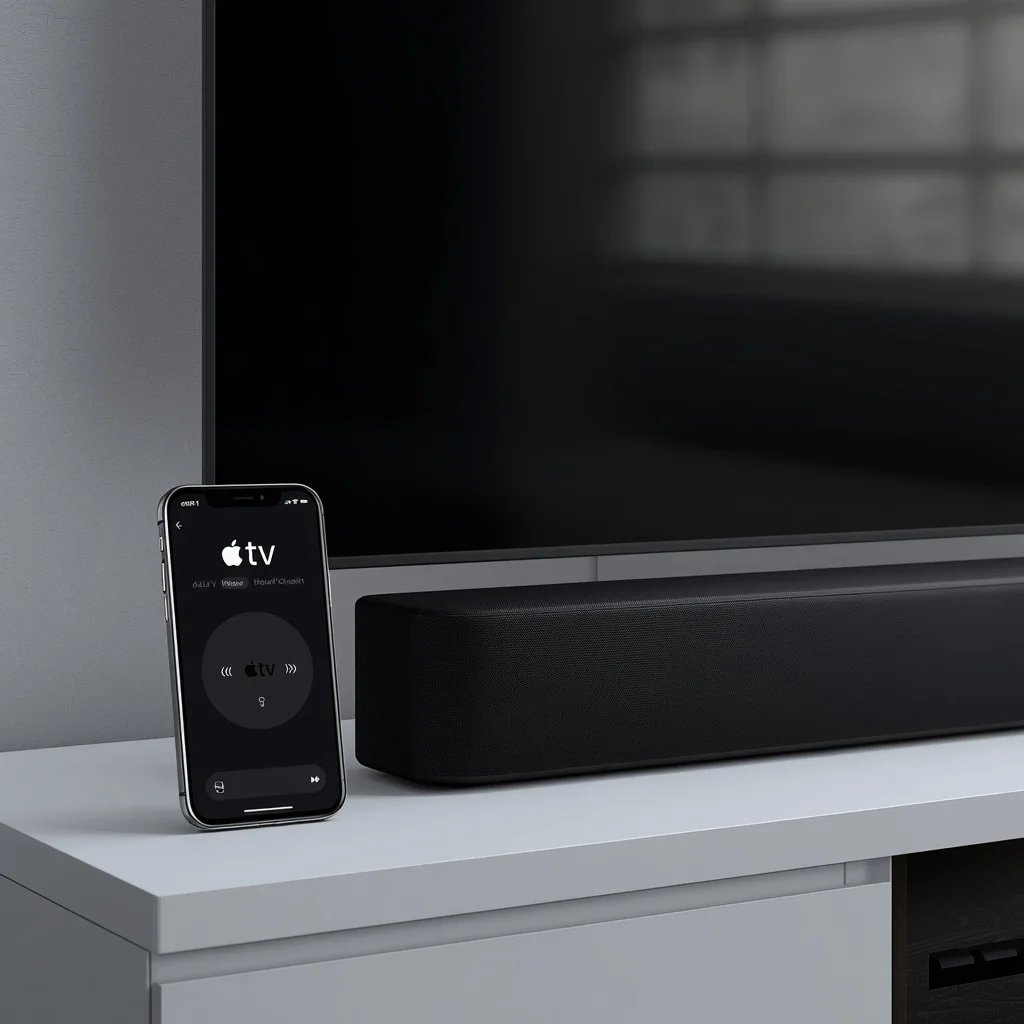
Using an iPhone as an Apple TV remote can be convenient, especially when the physical remote is missing, out of battery, or difficult to use. However, problems can appear when the Apple TV Remote on iPhone cannot connect, the volume buttons do nothing, or the TV and sound system do not respond correctly.
The good news is that most Apple TV remote app problems are related to connectivity, audio settings, HDMI-CEC, or the way the television or receiver handles volume commands.
This guide explains how the Apple TV Remote works on iPhone and what to check when volume control or other remote functions stop working.
What Is the Apple TV Remote on iPhone?
The Apple TV Remote is a built-in control feature available through Control Center on supported iPhones. It lets you navigate Apple TV, select content, pause playback, open apps, and perform other common remote functions without needing the physical Siri Remote.
The iPhone and Apple TV normally need to be connected to the same Wi-Fi network for the remote feature to communicate with the Apple TV.
The iPhone remote is particularly useful when:
- You cannot find the physical Apple TV remote
- The Siri Remote battery is low
- You want a second remote
- The physical remote is not responding
- You need temporary access to Apple TV settings
If the iPhone remote itself cannot connect, fixing the network connection should be your first step.
How to Open Apple TV Remote on iPhone
On newer versions of iOS, you can normally access the Apple TV Remote from Control Center.
- Open Control Center on your iPhone.
- Look for the Apple TV Remote control.
- Tap it.
- Select your Apple TV if more than one device appears.
- Enter the displayed passcode if Apple TV asks for one.
Once connected, the iPhone can be used for navigation and playback control.
If the Apple TV does not appear, check the Wi-Fi connection on both devices before changing other settings.
Apple TV Remote App Not Connecting
One of the most common problems is that the iPhone remote cannot find the Apple TV.
Start with the network.
Check the Wi-Fi Connection
Your iPhone and Apple TV should normally be on the same local network. If your iPhone is connected to one Wi-Fi network while Apple TV is using another, the remote may not discover the device.
Check:
- iPhone Wi-Fi
- Apple TV network connection
- Router status
- Guest network settings
- VPN connections on the iPhone
A guest Wi-Fi network can sometimes isolate devices from one another, preventing the iPhone from communicating with Apple TV.
Restart Both Devices
A simple restart can clear a temporary connection problem.
Restart the iPhone and Apple TV, then connect to the same Wi-Fi network again.
After restarting, open Control Center and try the Apple TV Remote again.
Check for Software Updates
An outdated version of iOS or tvOS can sometimes cause compatibility or connection problems.
Check for available software updates on both devices. Keeping the operating systems updated can also improve network stability and fix known bugs.
For official Apple troubleshooting information, see Apple Support.
Apple TV Remote Volume Control Not Working
The Apple TV Remote can control more than navigation, but volume control works differently from basic menu navigation.
The important question is: which device actually controls your audio?
Your television might produce the sound directly, or Apple TV may send audio to a soundbar, AV receiver, or another audio system.
Because of this, the volume buttons on the iPhone remote may not behave as expected if the connected equipment or control settings are not configured correctly.
Check Apple TV Volume Control Settings
On Apple TV, review the remote and device-control settings.
Go to the relevant remote and device-control section in Apple TV settings and check how volume control is configured.
Depending on your setup, Apple TV may use:
- HDMI-CEC
- Infrared control
- The television’s own remote protocol
- A connected receiver or soundbar
If the selected control method does not match your hardware, volume commands may appear to do nothing.
HDMI-CEC Can Affect Volume Control
HDMI-CEC is one of the most important technologies to check when Apple TV volume control is not working.
CEC allows compatible devices connected through HDMI to communicate with each other. This can allow Apple TV commands to reach a television, soundbar, or receiver.
Manufacturers often give HDMI-CEC different names.
Examples include:
- Samsung — Anynet+
- LG — SIMPLINK
- Sony — BRAVIA Sync
- Philips — EasyLink
- Panasonic — VIERA Link
If HDMI-CEC is disabled on the television or audio equipment, Apple TV may not be able to control volume through the HDMI connection.
Look through your TV’s HDMI or external-device settings and make sure its CEC feature is enabled.
When a Soundbar or Receiver Is Connected
A soundbar or AV receiver can change how volume commands are handled.
For example, if Apple TV sends audio through a soundbar instead of the television speakers, changing the TV’s volume setting may not produce the expected result.
Check which device is handling the audio output.
You may need to verify:
- Apple TV audio output
- TV audio settings
- Soundbar input
- Receiver input
- HDMI-CEC status
- Remote-control configuration
Try controlling the soundbar or receiver with its original remote. If its volume does not respond there either, the problem may be with the audio device rather than Apple TV.
Try Switching Audio Output
If the Apple TV Remote works for navigation but not volume, temporarily changing the audio output can help identify the source of the problem.
For example, if a soundbar is connected, test the television’s built-in speakers if possible.
If volume control starts working with the TV speakers, the external audio equipment or its HDMI-control configuration is worth investigating.
This is a useful diagnostic step because it separates an Apple TV problem from an audio-device problem.
Restart the Apple TV Remote Connection
If the remote connects but behaves strangely, close the remote interface and restart the connection.
You can also restart Apple TV and then reconnect the iPhone.
For problems involving the physical Siri Remote, you can follow our detailed guide on how to reset and reconnect an Apple TV remote.
If the main problem is specifically that the physical remote cannot change volume, our guide to Apple TV Remote volume problems and fixes covers additional troubleshooting steps.
iPhone Remote Works but Volume Buttons Do Nothing
This situation is useful because it tells you that the basic remote connection is probably working.
If you can:
- Move around Apple TV menus
- Open apps
- Select items
- Pause or play content
but cannot change the volume, focus on the audio-control path rather than Wi-Fi.
Check these areas:
1. TV audio output
Confirm that the TV is actually producing the sound or passing it to the expected audio device.
2. HDMI-CEC
Make sure HDMI-CEC is enabled on the television and compatible external equipment.
3. Apple TV control method
Check which method Apple TV is using to send volume commands.
4. Soundbar or receiver
If external audio equipment is connected, check its settings and HDMI connection.
5. Physical remote
Test the physical Siri Remote if available. This can help determine whether the issue affects Apple TV generally or only the iPhone remote.
What If Apple TV Remote Is Missing From Control Center?
If you cannot find the Apple TV Remote control on your iPhone, check whether it is available in Control Center customization.
Open Control Center and look for the available controls or customization options. The exact interface can vary between iOS versions.
Also make sure the iPhone is running a supported version of iOS and that the Apple TV is connected to the network.
If another iPhone or Apple device can discover the Apple TV, the problem may be limited to the first iPhone.
Apple TV Remote Keeps Disconnecting
Repeated disconnections are usually worth troubleshooting from the network side.
Try these steps:
- Move the iPhone closer to the Wi-Fi router.
- Restart the router if other devices are also experiencing problems.
- Disconnect any unnecessary VPN connection on the iPhone.
- Confirm both devices are using the intended Wi-Fi network.
- Restart Apple TV.
- Restart the iPhone.
- Install available system updates.
If the connection becomes stable after these steps, the issue was likely temporary network or software behavior.
Can an iPhone Replace the Physical Apple TV Remote?
For many everyday tasks, yes. The iPhone’s Apple TV Remote can handle navigation and playback without requiring the physical remote.
However, the experience depends on your Apple TV, iPhone, television, and audio setup.
For example, a basic Apple TV connection to TV speakers may be easier to troubleshoot than a setup involving:
- Apple TV
- Television
- Soundbar
- AV receiver
- HDMI switch
- Multiple external devices
The more devices involved, the more important HDMI-CEC and audio-output settings become.
Quick Troubleshooting Checklist
If your Apple TV Remote on iPhone is not working correctly, go through this checklist:
- Confirm iPhone and Apple TV are on the same Wi-Fi network
- Restart the iPhone
- Restart Apple TV
- Check for software updates
- Check Apple TV remote settings
- Verify the audio output
- Enable HDMI-CEC on compatible devices
- Check soundbar or receiver settings
- Test the physical Siri Remote if available
- Temporarily test TV speakers
- Reconnect the remote after restarting the devices
This approach can help identify whether the problem is with the iPhone connection, Apple TV settings, or the audio equipment.
Frequently Asked Questions
Why is my Apple TV Remote on iPhone not connecting?
The most common causes include different Wi-Fi networks, network isolation, temporary software problems, or an Apple TV that needs to be restarted. Check the network first and restart both devices.
Why does the Apple TV Remote work but not control volume?
Navigation and volume control use different parts of the device-control setup. Check Apple TV’s volume-control configuration, HDMI-CEC, TV audio settings, and any connected soundbar or receiver.
Does Apple TV Remote need Wi-Fi?
The iPhone-based Apple TV Remote normally relies on the local network to communicate with Apple TV, so both devices should be connected appropriately to the same Wi-Fi network.
Can I use my iPhone if I lose my Apple TV remote?
Yes. A compatible iPhone can provide an Apple TV Remote through Control Center, allowing you to perform many of the functions normally handled by the physical remote.
Why won’t my soundbar respond to Apple TV volume commands?
The soundbar may not be receiving volume commands through the expected control method. Check HDMI-CEC, the HDMI connection, audio output settings, and the soundbar’s own configuration.
Final Thoughts
The Apple TV Remote on iPhone is useful, but volume control depends on more than the remote interface itself. The television, HDMI connection, Apple TV settings, and external audio equipment can all affect whether volume commands work.
If basic navigation works but volume does not, concentrate on audio output, HDMI-CEC, and device-control settings rather than repeatedly troubleshooting the Wi-Fi connection.
For connection and physical remote problems, use the related troubleshooting guides on Apple TV Remote volume issues and resetting or reconnecting an Apple TV remote.





Leave a Reply