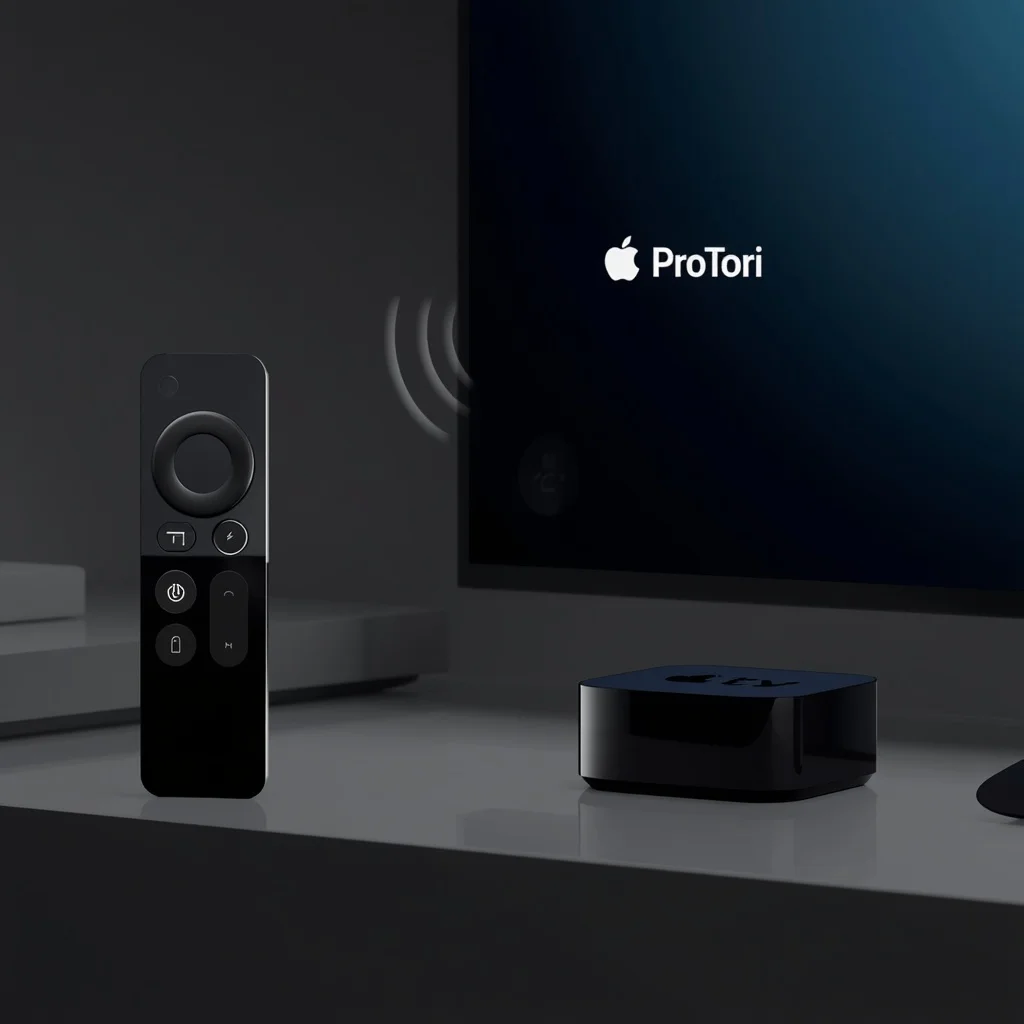
If your Apple TV remote is not responding, keeps disconnecting, or suddenly stops controlling your Apple TV, resetting or reconnecting it can often solve the problem. A remote may lose its connection after an Apple TV restart, a software update, a low battery, or a change in the television setup.
The process is usually straightforward, and you normally do not need to reset the entire Apple TV just because the remote is having connection problems.
This guide explains how to reset an Apple TV remote, how to reconnect it, what to do when pairing fails, and how to troubleshoot common connection issues.
Why Does an Apple TV Remote Need to Be Reconnected?
The Apple TV remote communicates wirelessly with the Apple TV. Like other wireless devices, the connection can occasionally become unavailable or unstable.
Common reasons include:
- The remote battery is low
- Apple TV was recently restarted
- The remote lost its pairing
- A temporary software problem occurred
- The remote is too far from Apple TV
- Another device is interfering with the connection
- The Apple TV is not responding correctly
- The remote needs to be restarted
- The remote was previously paired with another Apple TV
If the remote still controls some functions but the volume buttons do not work, the problem may be related to TV or audio-device control rather than pairing. In that situation, see our guide on Apple TV remote volume not working.
Before Resetting the Apple TV Remote
Before attempting to reconnect the remote, check a few basic things.
Charge the Remote
A low battery can cause the remote to behave unpredictably or stop responding.
Connect the remote to a compatible charging cable and allow it to charge.
After charging, try using it again.
Keep the Remote Near Apple TV
Place the remote close to the Apple TV while attempting to reconnect it.
This helps reduce the possibility of a weak wireless connection interfering with the pairing process.
Restart Apple TV
If Apple TV is frozen or not responding, restarting it may solve the problem before you need to reconnect the remote.
You can usually restart Apple TV from:
Settings → System → Restart
If you cannot navigate the interface because the remote is completely unresponsive, you may need to restart the Apple TV using another available method.
How to Restart an Apple TV Remote
A remote restart is different from resetting the Apple TV itself.
For a Siri Remote or compatible Apple TV remote, press and hold the TV/Control Center button and Volume Down button at the same time.
Continue holding them for several seconds.
The Apple TV may briefly lose the remote connection while the remote restarts. Wait a few moments and then try using the remote again.
This simple restart can fix temporary connection problems without requiring you to pair the remote again.
How to Reconnect an Apple TV Remote
If restarting the remote does not solve the problem, you can try reconnecting it to Apple TV.
Step 1: Bring the Remote Close
Hold the Apple TV remote close to the Apple TV.
Keeping the devices close together makes the pairing process easier.
Step 2: Press the Pairing Buttons
Depending on your Siri Remote generation, the button combination used to initiate pairing can differ.
Follow the pairing instructions displayed on your Apple TV.
If Apple TV recognizes the remote, an on-screen message may appear confirming that the remote is being connected.
Step 3: Wait for Pairing
Do not move the remote away while the connection is being established.
Once pairing is complete, test several buttons.
Try the directional controls, TV button, Back button, Play/Pause, and volume buttons.
What Happens When You Reset an Apple TV Remote?
People often use the word “reset” to describe several different actions.
A remote restart temporarily refreshes its operation.
Reconnecting or pairing establishes the wireless connection with Apple TV again.
Neither action is the same as factory-resetting the Apple TV.
In most troubleshooting situations, you should try restarting and reconnecting the remote before considering more drastic steps.
How to Unpair an Apple TV Remote
In many cases, you do not need to manually unpair a Siri Remote before reconnecting it.
If the remote is already associated with an Apple TV, the system can generally manage the connection when you pair it again.
If you are moving a remote between Apple TV devices, make sure the remote is close to the Apple TV you want to control and follow the pairing instructions provided by the device.
Apple TV Remote Not Pairing
If your Apple TV remote will not pair, work through the following checks.
Check the Battery
Make sure the remote has enough charge.
A remote with a critically low battery may not be able to establish a stable connection.
Restart the Remote
Perform the remote restart described earlier and try pairing again.
Restart Apple TV
A temporary Apple TV software issue can prevent a remote from connecting correctly.
Restart Apple TV and then try the pairing process again.
Move Other Wireless Devices Away
Although modern wireless devices are designed to coexist, moving unnecessary devices away while troubleshooting can help eliminate potential interference.
Keep the Remote Close
Place the remote close to Apple TV during pairing.
Do not attempt the initial connection from across the room.
Apple TV Remote Says “Pairing Failed”
If Apple TV reports that pairing failed, do not repeatedly press random buttons.
Instead, try this sequence:
- Charge the remote.
- Restart the remote.
- Restart Apple TV.
- Bring the remote close to Apple TV.
- Try pairing again.
- Check for Apple TV software updates.
If the problem continues, determine whether the issue is specific to the remote or the Apple TV.
Testing another compatible remote, if available, can help identify which device is causing the problem.
Apple TV Remote Connected but Not Working
Sometimes Apple TV shows that the remote is connected but the remote does not respond normally.
Start by restarting the remote.
Then test individual buttons.
If navigation works but volume does not, the remote may be paired correctly. In that situation, check your TV or audio setup instead of repeatedly pairing the remote.
For example, if the volume buttons stopped working after connecting a soundbar, the issue may involve HDMI-CEC or the volume-control configuration.
Apple TV Remote Volume Not Working After Reconnecting
Pairing the remote does not automatically guarantee that it can control the volume of every connected device.
The Apple TV remote can use different methods to control compatible TVs and audio equipment.
If your remote navigates Apple TV correctly but the volume buttons do not work, open:
Settings → Remotes and Devices → Volume Control
Review the available volume-control settings and configure the remote for your television or audio device.
You can also read our detailed guide to fixing Apple TV remote volume problems.
How to Check Apple TV Remote Battery Level
You can check the remote’s battery information through the Apple TV settings.
Open the relevant remote and device settings on your Apple TV to view the battery status.
If the battery is low, charge the remote before performing further troubleshooting.
Regularly charging the remote can also prevent unexpected connection problems.
Update Apple TV Software
An outdated version of tvOS can sometimes cause compatibility or device-management problems.
To check for an update, go to:
Settings → System → Software Updates
Then check whether an update is available.
If an update is available, install it and test the remote afterward.
Apple provides current device-specific instructions through its official Apple TV support page.
What If You Have More Than One Apple TV?
If you have multiple Apple TV devices in the same home, make sure you are pairing the remote with the correct device.
Bring the remote close to the Apple TV you want to control and follow the pairing instructions.
This is particularly important if you have recently moved an Apple TV to another room or changed your entertainment setup.
Can You Use an iPhone as an Apple TV Remote?
Yes. An iPhone can provide another way to control a compatible Apple TV.
The Apple TV Remote is available through the Control Center on supported iPhone configurations.
This can be particularly useful when your physical remote is lost, charging, or temporarily not working.
To learn more about using Apple devices with Apple TV, check Apple’s official Apple TV support documentation.
Using your iPhone as a temporary remote can also help you access Apple TV settings while troubleshooting the physical remote.
When Should You Replace the Apple TV Remote?
You should not assume that a remote needs replacement just because it stops responding.
Try restarting, charging, and reconnecting it first.
Replacement may be worth considering if:
- The remote has physical damage
- Buttons are permanently unresponsive
- It cannot hold a connection
- Charging does not work
- The remote cannot be paired after troubleshooting
- Another compatible remote works normally with the same Apple TV
If the problem follows the Apple TV rather than the remote, replacing the remote may not solve the underlying issue.
Apple TV Remote Troubleshooting Checklist
If you want a quick troubleshooting process, use this checklist:
- Charge the Apple TV remote.
- Keep it close to Apple TV.
- Restart the remote.
- Restart Apple TV.
- Try pairing the remote again.
- Check tvOS for updates.
- Test navigation buttons.
- Check volume-control settings.
- Check your TV or soundbar.
- Try another compatible remote if available.
This sequence helps you identify whether the problem is related to the remote, Apple TV software, wireless pairing, or connected audio equipment.
Frequently Asked Questions
How do I reset my Apple TV remote?
For a Siri Remote, you can restart it by pressing and holding the TV/Control Center button and Volume Down button together for several seconds. If you need to reconnect it, bring it close to Apple TV and follow the pairing instructions shown on the screen.
How do I reconnect my Apple TV remote?
Keep the remote close to Apple TV and initiate the pairing process using the appropriate buttons for your remote model. Follow the on-screen instructions until Apple TV confirms the connection.
Why won’t my Apple TV remote connect?
The remote may have a low battery, lost its pairing, or encountered a temporary software or wireless connection problem. Charging, restarting both devices, and trying the pairing process again are good first steps.
Can I use my iPhone if my Apple TV remote is not working?
Yes. On supported iPhones, the Apple TV Remote can be accessed from Control Center and used to control a compatible Apple TV.
Do I need to reset my Apple TV to fix the remote?
Usually, no. Try charging, restarting, and reconnecting the remote first. Resetting the entire Apple TV should not be the first troubleshooting step for a remote connection problem.
Final Thoughts
If your Apple TV remote stops responding, resetting the entire Apple TV is usually unnecessary. Start with the simplest solutions: charge the remote, restart it, restart Apple TV, and attempt to reconnect the remote.
If pairing succeeds but certain functions such as volume control still do not work, investigate the television, soundbar, HDMI-CEC, and Apple TV volume-control settings.
Following the troubleshooting steps in order can help you identify the actual cause instead of replacing a remote that may still be working correctly.




Leave a Reply