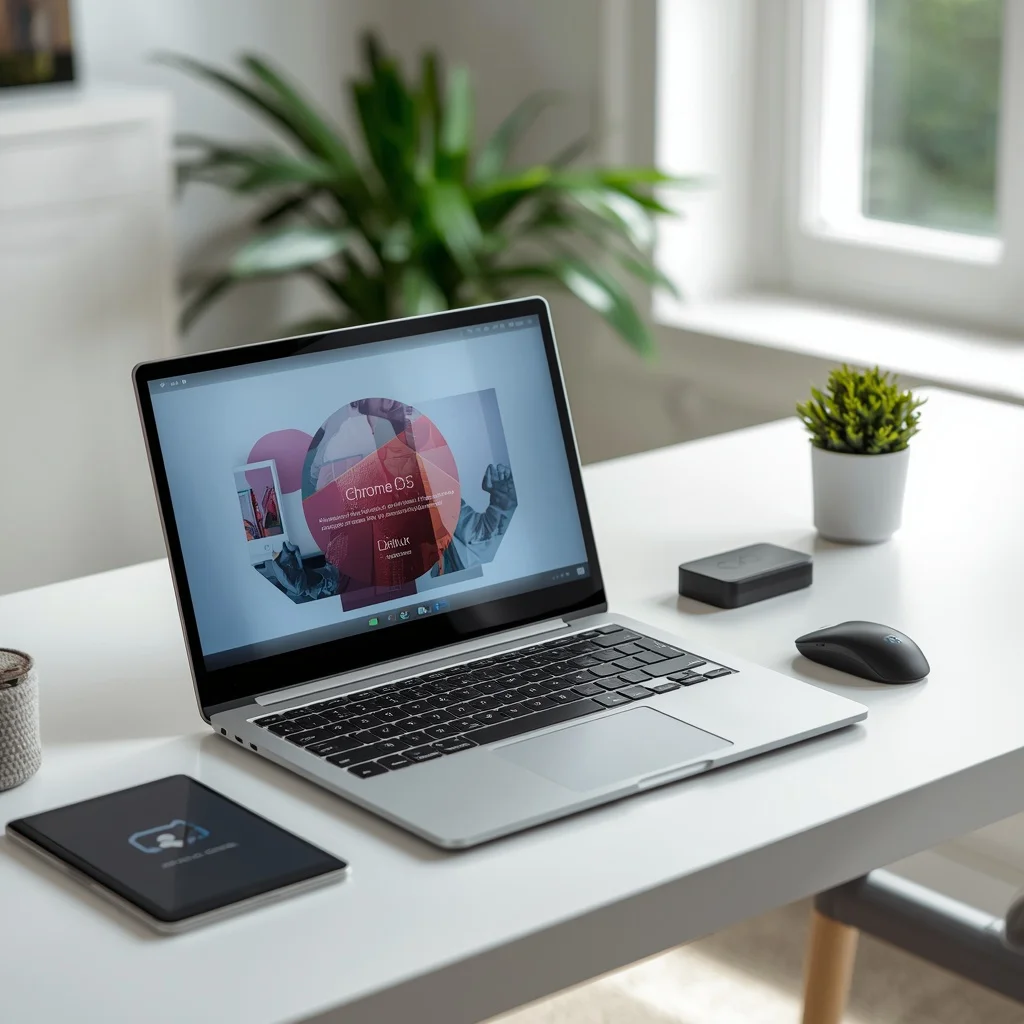
Chromebooks have become a practical option for people who primarily work online, use web applications, attend classes, browse the internet, stream content, and manage everyday tasks through Google’s ecosystem. Instead of using a traditional desktop operating system such as Windows, Chromebooks run ChromeOS, a lightweight operating system designed around the web and modern cloud-based workflows.
That does not mean every Chromebook works the same way. Different models vary in screen quality, processing hardware, battery life, storage, keyboard design, touchscreen support, and software capabilities.
The best Chromebook in 2026 depends on what you actually plan to do with it. A student may need a lightweight device with excellent battery life, while a professional might prefer a larger display and a Chromebook Plus model with stronger hardware.
This guide explains the important differences and what to look for before buying a Chromebook.
What Is a Chromebook?
A Chromebook is a laptop that runs Google’s ChromeOS instead of Windows or macOS.
ChromeOS is built around Google’s Chrome browser and web-based services. Users can access websites, cloud applications, Google Workspace tools, streaming services, and many other online platforms directly from the laptop.
Modern Chromebooks can also support Android applications on compatible devices, while supported models can provide Linux development environments.
This makes ChromeOS more capable than the basic browser-only experience that some older Chromebook descriptions suggest.
How Is ChromeOS Different From Windows?
The biggest difference is the operating system and the way applications are installed and used.
Windows supports a huge range of traditional desktop software. ChromeOS puts greater emphasis on web applications, cloud services, and supported applications available through Google’s ecosystem.
A Chromebook can be particularly convenient when your everyday workflow already involves:
- Google Docs
- Google Sheets
- Gmail
- Google Drive
- Google Meet
- Chrome
- Web-based business applications
- Online education platforms
If your work depends on specialized Windows-only software, however, you should check compatibility before purchasing.
Who Should Buy a Chromebook?
Chromebooks can be a good fit for users whose computing needs are primarily web-based.
Students
Students can use Chromebooks for:
- Research
- Online classes
- Google Classroom
- Documents
- Presentations
- Video meetings
- Educational websites
A lightweight Chromebook with strong battery life can be particularly convenient for carrying between classes.
Home Users
For basic home computing, ChromeOS can provide a simple environment for:
- Browsing
- YouTube
- Streaming
- Online shopping
- Personal documents
- Social media
- Cloud storage
Users who rarely install traditional desktop software may find ChromeOS straightforward.
Remote Workers
A Chromebook can work well for remote employees whose company tools are browser-based.
Before buying one for work, verify that your employer’s applications, VPN, authentication system, document tools, and communication software are compatible with ChromeOS.
Who May Not Want a Chromebook?
ChromeOS is not automatically suitable for every type of user.
Think carefully before buying a Chromebook if you regularly depend on:
- Specialized Windows applications
- Certain professional desktop software
- Advanced local video-editing applications
- Traditional desktop accounting programs
- Windows-specific business software
- Certain high-end creative applications
- Specialized engineering or scientific software
Some applications may have web versions or alternatives, but compatibility should be checked before making the purchase.
What Is Chromebook Plus?
Chromebook Plus is Google’s higher-performance Chromebook category designed for users who want more capable hardware and additional features than basic Chromebook models.
When comparing a Chromebook Plus device with a basic Chromebook, pay attention to the complete hardware configuration rather than assuming that the “Plus” name makes every model identical.
Chromebook Plus models are generally aimed at users who want a stronger experience for multitasking, productivity, video calls, and other everyday workloads.
Google’s official Chromebook information is available through the Chromebook website.
ChromeOS and Android Apps
Compatible Chromebooks can run many Android applications, expanding what you can do beyond traditional websites.
This can be useful for:
- Mobile productivity apps
- Communication
- Entertainment
- Education
- Casual games
- Utility applications
However, Android apps were originally designed for mobile devices, so the experience can vary between applications.
Before relying on a particular Android app, check whether it works properly on ChromeOS and whether all of its features are available.
Using Linux on a Chromebook
Supported Chromebooks can provide a Linux development environment, commonly referred to as Linux on ChromeOS.
This can be valuable for developers and technical users who need command-line tools, programming environments, and Linux applications.
Linux support does not mean that a Chromebook becomes identical to a traditional Linux laptop. There are still differences involving hardware access, application compatibility, and the ChromeOS environment.
For developers, it is worth checking the exact capabilities of the Chromebook model before purchasing.
Chromebook Storage: Local vs Cloud
Chromebooks often emphasize cloud storage rather than requiring users to keep everything locally.
Google Drive can be used to store documents and other files, while ChromeOS can also work with local files.
This approach can be convenient because your files can be accessible across multiple devices when synchronized through your account.
However, users who keep large collections of videos, photos, games, or other files locally should pay close attention to storage capacity.
A Chromebook with limited internal storage may be perfectly adequate for a cloud-focused student but inconvenient for someone who wants to store large amounts of data locally.
Can You Use a Chromebook Offline?
Yes, but the experience depends on the application.
Some Google applications and other web services support offline functionality. Files can also be stored locally when needed.
However, a Chromebook is most naturally suited to workflows that involve an internet connection.
Before buying one, consider whether you regularly work in places with unreliable or limited internet access.
If offline work is important, check the specific applications you use and confirm what functions remain available without an internet connection.
Chromebook Automatic Updates and AUE
One of the most important Chromebook-specific considerations is Automatic Update Expiration, commonly abbreviated as AUE.
Chromebooks receive ChromeOS and security updates for a defined period. The exact support date varies by device.
This means buyers should not judge a Chromebook only by its current specifications. A device with an attractive price may have a shorter remaining update period than a newer model.
Google provides official information about Chromebook update policies and device support through its Auto Update policy.
Why AUE Matters
A Chromebook with many years of remaining updates can offer a better long-term ownership experience than an older model with a much nearer update-expiration date.
Before buying a Chromebook, especially a used one, check the exact model and its AUE date.
This is one of the most important differences between buying a Chromebook and choosing a conventional laptop.
Chromebook Screen Options
The display can significantly affect your daily experience.
Chromebooks are available with different screen sizes and panel types.
Smaller Chromebooks
Compact models are useful for:
- Students
- Travel
- Reading
- Web browsing
- Basic productivity
They are easier to carry but provide less screen space.
Larger Chromebooks
Larger displays can be more comfortable for:
- Spreadsheets
- Multiple browser windows
- Documents
- Presentations
- Streaming
- Work from home
Touchscreen Chromebooks
A touchscreen can be useful when the device also supports tablet-style use.
Touchscreen and 2-in-1 Chromebooks can be particularly convenient for reading, presentations, casual drawing, and Android applications.
Chromebook Battery Life
Battery life is one of the major reasons people consider Chromebooks.
ChromeOS is designed around relatively lightweight computing tasks, although actual battery life varies considerably between models.
Real-world battery performance depends on:
- Screen brightness
- Processor
- Display resolution
- Number of browser tabs
- Video playback
- Wi-Fi activity
- Android applications
- Background processes
Do not rely only on a manufacturer’s maximum battery claim. Independent testing and user experiences can provide a better idea of practical endurance.
Chromebook Processor Choices
You do not necessarily need the most powerful processor for ChromeOS.
The right processor depends on how heavily you multitask.
For basic browsing and schoolwork, an entry-level processor can be sufficient.
Users who regularly keep many tabs open, participate in video meetings, edit documents, use Android applications, or perform other multitasking may benefit from a stronger processor.
If you plan to use Linux development tools or demanding applications, processor performance becomes more important.
The key is to match the hardware to your workflow rather than buying based solely on processor branding.
How Much Memory Does a Chromebook Need?
Memory affects multitasking and how comfortably the system handles multiple open applications and browser tabs.
A basic Chromebook may be suitable with a smaller memory configuration if your usage is light.
For heavier multitasking, more memory can provide additional flexibility.
When comparing models, consider the entire configuration:
- Processor
- Memory
- Storage
- Display
- Software support period
A Chromebook with more RAM but an outdated platform and short remaining update period may not necessarily be the better purchase.
Chromebook Keyboard and Trackpad
The keyboard is easy to overlook when comparing specifications, but it directly affects productivity.
If you write documents, respond to emails, or work online for several hours every day, keyboard comfort matters.
Look for:
- Comfortable key travel
- Good key spacing
- Reliable backlighting where available
- Responsive trackpad
- A keyboard layout you are familiar with
If possible, try the keyboard before purchasing.
Chromebook Ports and Accessories
Chromebooks can differ considerably in their available ports.
Depending on the model, you may find:
- USB-C
- USB-A
- Headphone jack
- microSD card slot
- HDMI
- External display support
USB-C can be particularly useful for charging, accessories, storage, and external displays, but capabilities differ between individual models.
If you plan to connect a monitor, printer, external drive, camera, or other equipment, check the specifications of the exact Chromebook.
Chromebook for Gaming
Chromebook gaming has changed over time, but buyers should still distinguish between different types of gaming.
Casual browser games and compatible Android games can work well on appropriate devices.
Cloud gaming services can also allow users to stream games without running the complete game locally.
However, a Chromebook is not automatically a replacement for a high-end Windows gaming PC.
If gaming is your primary requirement, check the supported gaming services, controller compatibility, display refresh rate, network requirements, and game library before buying.
Chromebook for Work From Home
A Chromebook can be suitable for remote work when the required tools are browser-based.
Before buying one for professional use, verify:
- Company web applications
- Video conferencing
- VPN requirements
- File-sharing systems
- Authentication tools
- Browser extensions
- Office software compatibility
- External monitor support
Google Workspace users may find ChromeOS especially convenient because many commonly used productivity tools are already web-based.
Chromebook for Children and Students
Chromebooks can be practical for education because they are relatively simple to manage and are closely integrated with Google’s education ecosystem.
Parents should still consider:
- Screen size
- Durability
- Keyboard quality
- Battery life
- Camera
- School software requirements
- Update support period
For a child, a rugged or durable design may be more useful than premium materials or high-end performance.
2-in-1 Chromebook vs Traditional Laptop
A traditional clamshell Chromebook is usually straightforward and often provides a good balance between cost and functionality.
A 2-in-1 model adds flexibility because the screen can fold into different positions.
A 2-in-1 may be useful if you:
- Read frequently
- Use touchscreen applications
- Watch videos
- Take notes
- Want tablet-style operation
- Use Android applications
If you primarily type documents at a desk, a conventional laptop design may be all you need.
How to Choose the Best Chromebook in 2026
Instead of searching for one universal “best” model, evaluate Chromebooks according to your own requirements.
For Basic Home Use
Prioritize:
- Comfortable display
- Reliable Wi-Fi
- Good battery life
- Enough memory for your browsing habits
- Adequate storage
For Students
Focus on:
- Portability
- Battery life
- Webcam
- Keyboard
- Durability
- Long remaining update support
For Professionals
Consider:
- Chromebook Plus models
- Larger display
- Better multitasking performance
- External monitor support
- Keyboard comfort
- Application compatibility
For Developers
Pay closer attention to:
- Processor performance
- Memory
- Linux support
- Storage
- External display capabilities
- Update support
New vs Used Chromebook
A used Chromebook can be tempting because of its lower price, but AUE should be one of the first things you check.
Before buying a used Chromebook, verify:
- Exact model
- AUE date
- Current ChromeOS support
- Battery condition
- Screen condition
- Keyboard and trackpad
- Charger
- Storage health
- Ports
- Seller return policy
A very inexpensive Chromebook may not be a good deal if its software support period is nearly finished.
Chromebook Buying Mistakes to Avoid
Ignoring AUE
This is one of the biggest Chromebook-specific mistakes.
Buying Based Only on Price
A cheap Chromebook may compromise on display, keyboard, performance, storage, or long-term support.
Assuming All Android Apps Work Perfectly
Application compatibility can vary.
Assuming Every Chromebook Is Good for Linux
Linux capabilities can differ between models.
Buying Too Little Storage
Cloud storage is useful, but local storage still matters for offline files and applications.
Choosing a Large Display Without Considering Portability
A bigger screen can improve productivity but may make the device heavier and less convenient to carry.
Chromebook Buying Checklist
Before purchasing, check:
- ChromeOS version and support
- AUE date
- Processor
- Memory
- Storage
- Display resolution and size
- Touchscreen support
- Battery life
- Keyboard
- Trackpad
- Webcam
- Speakers
- USB ports
- USB-C capabilities
- External display support
- Android app compatibility
- Linux support if needed
- Wi-Fi
- 2-in-1 functionality
- Warranty
- Price
Frequently Asked Questions
Is a Chromebook good for everyday use?
A Chromebook can be very suitable for browsing, email, streaming, online learning, documents, and other web-based activities. It is less suitable when your workflow depends on specialized desktop applications that require Windows or another operating system.
Is Chromebook better than Windows?
Neither platform is universally better. ChromeOS is designed around web-based computing and simplicity, while Windows supports a much wider range of traditional desktop software and hardware configurations.
How long do Chromebooks receive updates?
The support period depends on the specific Chromebook model. Always check Google’s official AUE information before purchasing, particularly for an older or used device.
Can a Chromebook run Android apps?
Many compatible Chromebooks can run Android applications, although availability and functionality can vary by device and application.
Can you install Linux on a Chromebook?
Supported Chromebooks can provide a Linux development environment. Check the exact model’s capabilities before buying if Linux is an important requirement.
Is Chromebook good for students?
Yes, a Chromebook can be a practical student device for web research, online classes, documents, presentations, and education platforms, provided the student’s required software works with ChromeOS.
Can you use Microsoft Office on a Chromebook?
Microsoft’s productivity services can be accessed through web-based applications, but the experience and available features are not identical to using traditional Windows desktop versions. Check the specific Office or Microsoft 365 tools you need before buying.
Final Thoughts
The best Chromebook in 2026 depends less on a single specification and more on how the device fits your daily workflow.
For basic users, ChromeOS can provide a simple way to browse the web, stream content, manage documents, and use cloud applications. Students can benefit from portability and battery life, while professionals and developers should pay closer attention to hardware performance, application compatibility, Linux support, and external-display capabilities.
Most importantly, do not overlook the Chromebook’s Automatic Update Expiration date. It is a Chromebook-specific factor that can have a major effect on how long the device remains supported.
By checking ChromeOS compatibility, AUE, hardware, display, battery, ports, and your required applications before purchasing, you can choose a Chromebook that matches your needs instead of simply buying the cheapest or newest model.




Leave a Reply