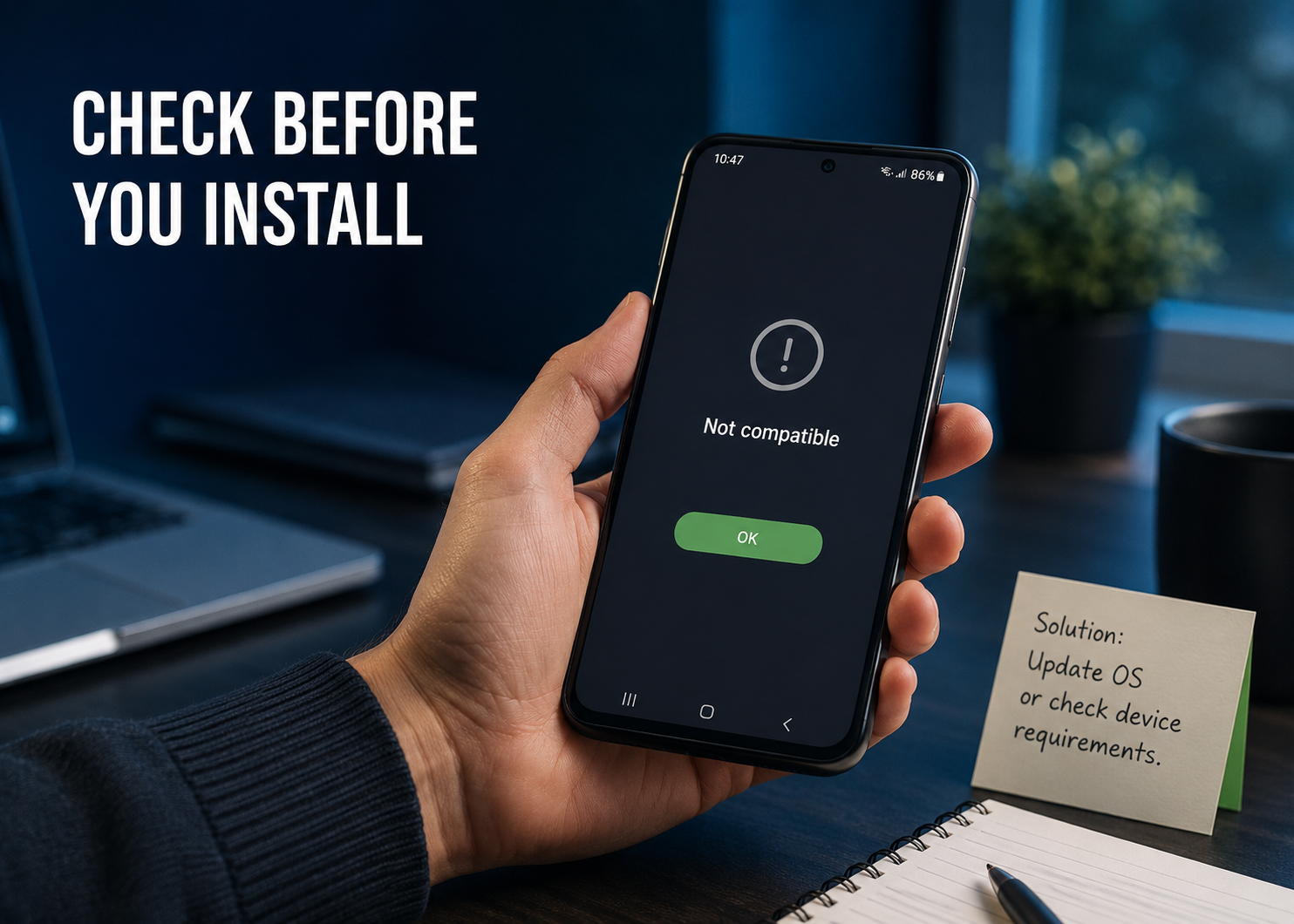
When an APK is not compatible with your phone, the problem is usually not a broken download. The app package may require a newer Android version, the wrong processor architecture, a different package format, or a device configuration the developer does not support.
The safest solution is to identify which requirement does not match before trying another file. Installing a random older build or changing device settings may not solve the issue—and can expose the phone to unverified software.
Start With the App’s Android Version Requirement
Every Android app declares the oldest Android version it can run on. This is often shown as a minimum Android version or minimum SDK requirement.
For example, an app that requires Android 10 cannot install on a phone running Android 9, even when there is enough storage and the APK file downloads normally. Android blocks the installation because the app may rely on features that do not exist on the older system.
To check your Android version:
- Open Settings.
- Tap About phone or About device.
- Select Android version.
Then compare it with the requirement listed by the developer or the app’s official store page. A system update may resolve the issue if your manufacturer still provides one. If the phone cannot be updated to the required version, use an app version specifically released for your Android version only when it comes from a trusted, legitimate source.
Android uses minimum API-level requirements to prevent apps from installing on systems that lack the features they need.
Check Whether the APK Matches Your Phone’s Processor
Many Android apps include code compiled for a particular processor architecture, also called an ABI. A package built only for arm64-v8a will not work on a phone that requires a 32-bit armeabi-v7a build. The same principle applies to x86-based devices.
Common Android ABIs include:
- arm64-v8a — used by most modern Android phones
- armeabi-v7a — used by many older 32-bit Android devices
- x86 and x86_64 — more common on emulators and a small number of devices
A file page may label its version as ARM64, ARMv7, x86, or universal. Choose the version that matches the device instead of assuming the newest or largest file is correct.
A universal APK can include support for more than one architecture, but it is not automatically suitable for every phone. Android version, screen requirements, device certification, and app-specific restrictions can still prevent installation.
For a clearer explanation of package types and compatibility labels, readers can refer to APKProTech.com’s Android apps and APK knowledge guide.
Make Sure It Is Actually a Standard APK
Not every Android app download is a single installable APK. Modern apps are often distributed as split packages, which divide language files, graphics, and processor-specific code into separate components.
You may see formats such as:
- APK
- APKS
- XAPK
- APKM
A normal Android package installer can usually open a standard .apk file. It may reject a split-package file or install only part of it. In that case, the issue is package format rather than phone compatibility.
Do not rename an APKS, XAPK, or APKM file to .apk. Changing the file extension does not combine its required components and can create a misleading installation error. Check the file format first, then use the developer’s official distribution method or a reputable installer that explicitly supports that format.
Confirm That the App Supports Your Device Type
An app can be compatible with Android in general but unavailable for a particular device. Developers and app stores may filter apps for several legitimate reasons:
- The device lacks required camera, GPS, NFC, or sensor hardware
- The app is designed only for phones, tablets, TVs, watches, or Chromebooks
- The device does not meet graphics or memory requirements
- The phone is rooted, uses an unlocked bootloader, or fails a security-integrity check
- The app is unavailable in the device’s region
- The developer has excluded certain models after testing problems
Banking, streaming, workplace, and game apps are especially likely to apply device-integrity or certification checks. Downloading a different APK rarely changes those policies. Use the developer’s support page to determine whether the restriction is intentional.
Check Whether the Download Is Complete and Genuine
A corrupted or modified file can produce an installation failure that looks like a compatibility problem. This is more likely when the file came from an unfamiliar website, was shared through messaging apps, or has been repacked.
Before attempting another installation:
- Delete the incomplete file and download it again from the developer or a recognized app marketplace.
- Check that the app name, developer name, version number, and file type match the official listing.
- Avoid files promoted as “unlocked,” “premium,” or “modded” when the original developer does not distribute them.
- Keep Play Protect and other Android security protections enabled.
- Review requested permissions after installation.
An APK that installs is not necessarily authentic or appropriate for the phone. Compatibility and trustworthiness are separate checks.
APKProTechs’ editorial standards for Android content explain why compatibility, source verification, and security warnings should be considered together.
Clear Up a Google Play Compatibility Error
When Google Play says an app is not compatible, first check the Android version and whether the phone is certified. Then make sure the Play Store is current and signed in to the correct Google account.
Useful checks include:
- Restart the phone.
- Update Android and Google Play system components where updates are available.
- Open Play Store, tap the profile icon, and check for Play Store updates.
- Confirm that the device date and time are set automatically.
- Review the app developer’s official compatibility details.
Clearing Play Store storage can sometimes correct a store-display problem, but it cannot make an app support hardware or an Android version it does not support. Treat it as a troubleshooting step, not a compatibility fix.
Why “Install From Unknown Apps” Does Not Fix Compatibility
The setting often called “Install unknown apps” only controls whether a browser, file manager, or other source can request an installation. It does not override Android version requirements, processor architecture, signatures, missing split files, or device restrictions.
Enabling the setting for a source does not make an incompatible APK work. It also increases the need to verify where the file came from. Turn the permission off again when it is no longer needed.
When an Older Version Is Reasonable
An older version may be appropriate when the app’s developer still provides it, it supports the phone’s Android version, and it comes from a trustworthy source. It is not a good solution for apps that handle financial information, personal records, passwords, workplace data, or other sensitive activity.
Older builds can lack security fixes, stop working when a service changes, or be blocked by the developer. If an app no longer supports the device, consider the web version, a lighter official alternative, or another app from a reputable developer.
A Quick Compatibility Checklist
Before installing any APK, confirm all of the following:
- The Android version meets the app’s minimum requirement.
- The package matches the phone’s processor architecture.
- The file format is supported by the installation method.
- The app is intended for the device type and region.
- The download comes from the developer or a reputable marketplace.
- The file is complete and has not been modified.
- The app does not require security checks the device cannot meet.
Final Thoughts
An APK not compatible with phone message is useful information, not something to bypass blindly. In most cases, it points to an Android-version mismatch, the wrong ABI, an incomplete split package, or an intentional device restriction.
Check the app’s official requirements first, use a package that matches the device, and avoid changing security settings or downloading modified files simply to force an installation. That approach protects both the phone and the information stored on it.





Leave a Reply