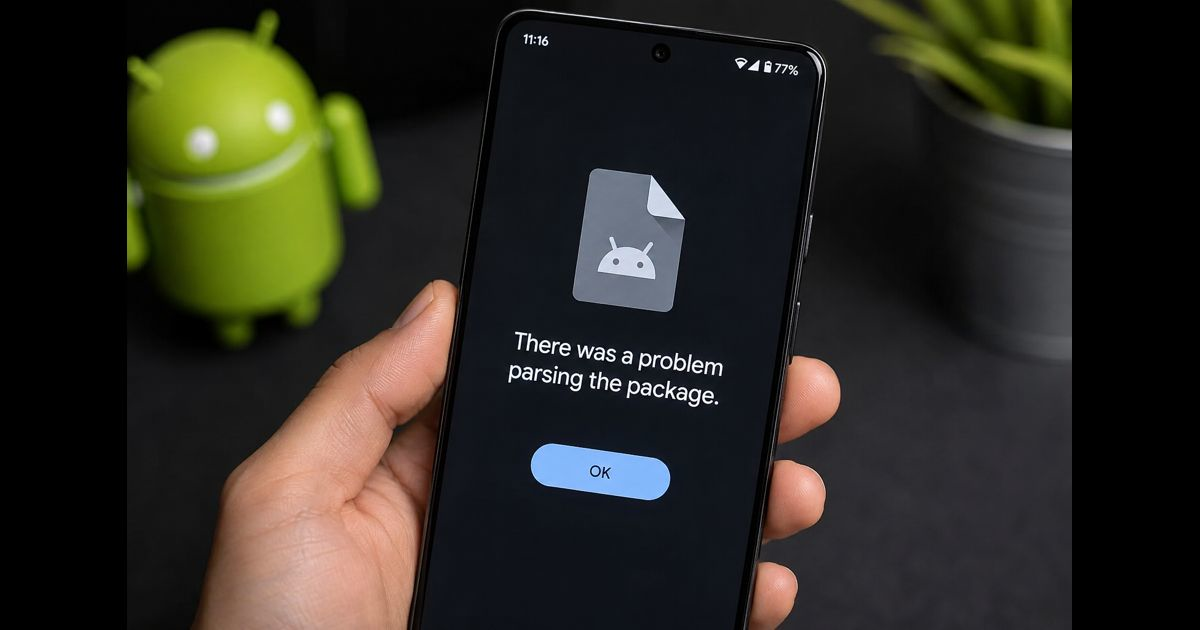
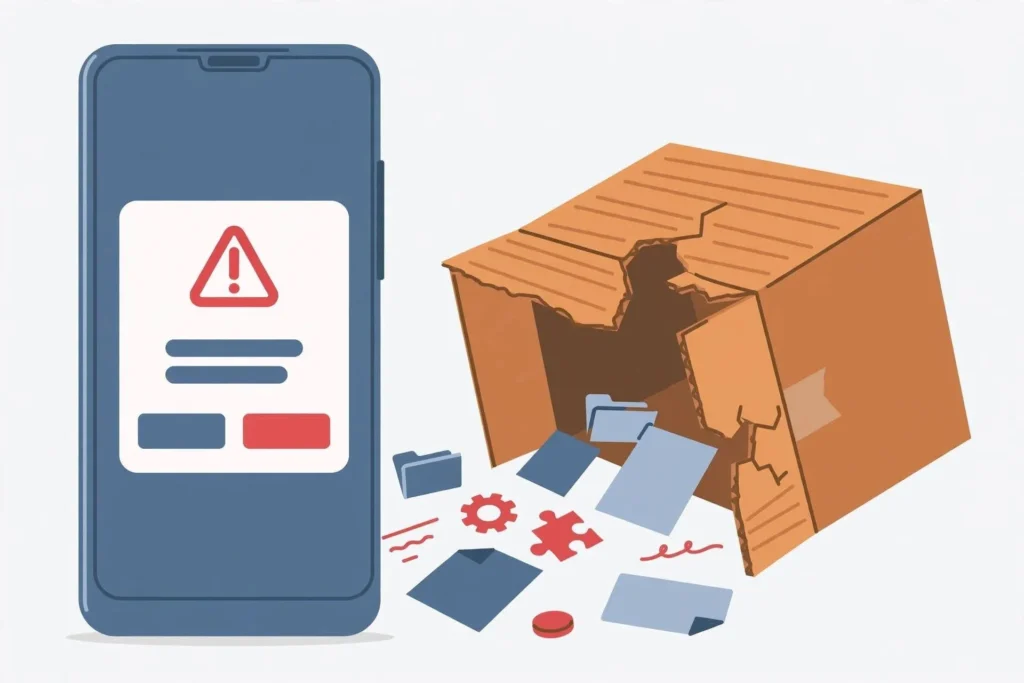
“There was a problem parsing the package” appears when Android cannot read an app installation file well enough to begin installation. It usually means one of four things: the file is incomplete, the app does not support the phone, the download is not a standalone APK, or Android has not allowed the app that opened the file to install it.
The message is frustrating because it does not identify the cause. The safest solution is to check the package in a sensible order instead of changing random settings.
Start with the file, not the phone
Before changing anything in Settings, look at the downloaded file’s extension and source.
A normal standalone installer ends in .apk. If the file ends in .xapk, .apks, or .zip, it is not meant to be opened directly by Android’s standard package installer. These formats may contain a base APK plus separate files for language, screen density, or processor type. Renaming one of them to .apk does not convert it into an installable APK.
Delete the file and download the correct package from the app developer, Google Play, or another source you can independently verify. A reliable download page should identify the app version, Android requirement, and supported processor architecture.
For a clearer foundation on Android APKs and how they are used, see this guide to Android APKs.
Check whether the download completed
A partially downloaded file can trigger a parsing error even when its name looks correct.
Open the Downloads folder and check whether the file is unusually small compared with the size listed by the publisher. If the download was interrupted, delete it rather than trying to install it again. Then reconnect to a stable Wi-Fi or mobile-data connection and download a fresh copy.
Do not rely on a file that was forwarded through a messaging app, renamed several times, or copied from an unknown archive. Those steps can leave you with an incomplete or altered package.
Confirm Android version compatibility
Every Android app declares the oldest Android version it can run on. If a phone runs an older version than the app requires, Android may reject the package before installation.
Check your device version:
- Open Settings.
- Tap About phone or About tablet.
- Open Android version.
Then compare it with the requirement listed by the original publisher. If the app requires a newer Android release, the sensible options are to update the device or use an older version supplied by the developer.
Do not edit an app’s manifest or lower its Android requirement with an APK editor. The app may depend on features your phone does not have, and modifying the package can break its signature or expose the device to risk.
Check processor architecture
Some Android apps are built for a specific processor architecture. The common labels are:
- arm64-v8a for most recent Android phones
- armeabi-v7a for many older 32-bit devices
- x86 or x86_64 for a smaller number of tablets, emulators, and specialized devices
Installing a package intended for another architecture can produce a parsing error or an installation failure. When an app page offers several builds, choose the one that matches both your Android version and processor architecture.
If the publisher offers a “universal” build, it is often the simplest choice because it includes support for more than one architecture. It may be larger, but it avoids guessing.
Allow the correct app to install files
On modern Android versions, installation permission belongs to the specific app that opens the installer. For example, allowing Chrome does not automatically allow Files by Google, Samsung My Files, or a messaging app.
If the APK is from a source you trust, check the permission like this:
- Open Settings.
- Use the Settings search bar and enter Install unknown apps.
- Select the browser or file manager that opened the APK.
- Turn on Allow from this source.
- Return to the file and try once more.
Turn the permission off afterward if you do not regularly install apps outside an official store. It is not a repair for a damaged or incompatible package; it only allows Android to begin the installation process.
Do not bypass a safety warning blindly
A parsing error and a security warning are not the same problem.
Google Play Protect checks apps during installation and can warn about apps that may be harmful. If Android or Play Protect shows a warning, stop and verify the app’s origin, publisher, and file integrity. A trusted developer should provide the app from an official website, an established app store, or a clearly identified release page.
Avoid turning off Play Protect just to make an installation proceed. If a verified package is incorrectly flagged, contact the developer for a current, properly signed release. A real fix should not require ignoring unexplained warnings.
Remove an older conflicting copy
If you installed the app before from a different source, a new package may not be accepted because it is signed with a different certificate. This situation more often produces “App not installed,” but it is still worth checking when the same app repeatedly fails.
Back up any data connected to the existing app, then uninstall the old copy before installing a replacement from the official publisher. Never uninstall a banking, authentication, wallet, or business app until you know how to restore access.
Clear space and restart once
Low storage usually creates a more specific message, but leaving adequate free space removes one possible complication. Delete unneeded downloads, restart the phone, and install the newly downloaded file again.
A restart can refresh the package installer after a failed attempt. It will not repair an incompatible app, so repeated restarts are unnecessary.
When the package comes from Google Play
If the same message appears while installing directly from Google Play, do not download a separate APK as the first response. Open the Play Store page and check whether the app supports your device. Then update Android and the Play Store, restart the phone, and retry.
If the app is unavailable or incompatible in Google Play, that is useful information. A manually obtained file may not solve the underlying hardware, Android-version, regional, or certification limitation.
A quick decision path
Use this order to avoid unnecessary changes:
- Make sure the file is a real .apk, not .xapk, .apks, or a renamed archive.
- Delete the file and download it again from a verified publisher.
- Check the required Android version.
- Match the processor architecture or choose a universal build.
- Allow the browser or file manager to install from that source.
- Review any safety warning instead of disabling protection.
- Remove an older conflicting copy only after backing up important app data.
If the error remains after those checks, the package is likely damaged, unsupported by the device, or distributed in a format that needs its own installer. The right answer is to obtain a compatible release from the developer—not to force an unknown file onto the phone.
Frequently asked questions
Does a parsing error mean the APK has malware?
No. It usually means Android could not read or accept the installation package. However, files from unknown sources can be unsafe, so use the error as a reason to verify the publisher before trying again.
Can an old Android phone install a new app with an APK?
Not always. An APK cannot add missing Android system features. If the app requires a newer Android version, use a supported older release from the developer or update the device if an official update is available.
Why does renaming an XAPK to APK not work?
An XAPK may contain more than one installation component. Renaming changes only the file label, not the package structure Android needs to install.
Should USB debugging be enabled to fix the error?
No. USB debugging is intended for development and computer-based diagnostics. It is not a standard fix for an ordinary APK parsing error and should remain off unless you specifically need it for trusted development work.





Leave a Reply