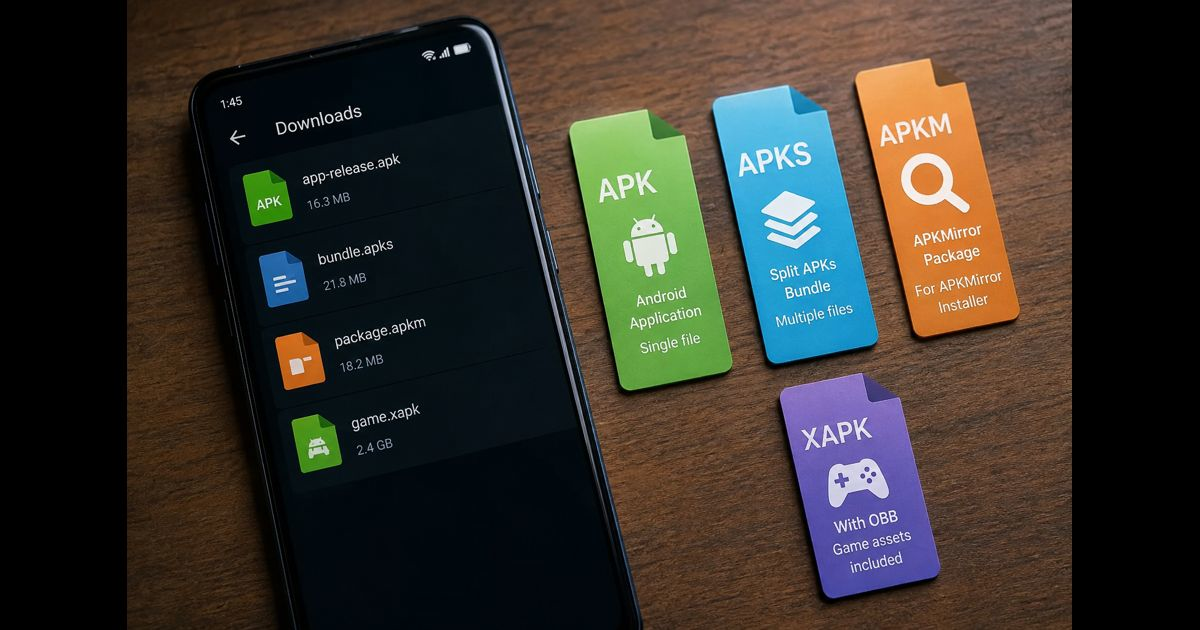
APK, APKS, APKM, and XAPK are all used to distribute Android apps outside Google Play, but they are not interchangeable. An APK is usually a single installable app file. APKS, APKM, and XAPK are containers that can hold several files needed for one app, often including device-specific components.
The safest option is still Google Play or the developer’s own download page. If an app is unavailable there, understanding the file type helps prevent failed installs, incompatible downloads, and unsafe workarounds.
The short answer
|
Format |
What it usually contains |
Can Android install it by tapping? |
Typical requirement |
|
.apk |
One Android application package |
Usually yes |
Android’s normal package installer |
|
.apks |
A bundle of split APK files |
No |
A split-APK installer |
|
.apkm |
APKMirror’s packaged split-APK bundle |
No |
APKMirror Installer |
|
.xapk |
An APK or split APKs, often with game assets |
Usually no |
A compatible installer or the source’s documented method |
The file extension identifies the delivery container, not whether the app is trustworthy. A malicious file can use any of these extensions.
APK: the standard Android installer
An APK is the traditional Android application package. It normally contains the app code, manifest, resources, and signing information in one file. When the APK includes everything required for a device, Android can install it directly after the user permits the browser, file manager, or other source to install unknown apps.
A single APK is easiest to handle, but it can be larger because it may include resources for several screen densities, languages, or processor architectures.
A direct APK install can still fail when:
- The app requires a newer Android version.
- The APK is built only for a different processor architecture.
- It is an update signed with a different certificate from the installed app.
- The file is incomplete, corrupted, or only one part of a split installation.
- The app depends on another component, such as a required library package.
Why split APKs exist
Modern Android apps often use Android App Bundles. Developers upload one app bundle to Google Play, and Google Play creates a tailored installation for each device. Instead of downloading every language, image density, and processor library, the phone receives only the parts it needs.
Android treats those parts as one installed app. A typical split installation may include:
- A base APK containing essential code and app information.
- An ABI split for the phone’s processor, such as arm64-v8a.
- A density split for the display.
- A language split for the selected language.
- Optional feature modules.
This is why a download that looks like an app package may no longer install with one tap. The phone needs the base APK and its matching splits together. The difference is explained in more depth in Universal APK vs Split APK.
APKS: a bundle of split APK files
An .apks file generally packages multiple APK files into one archive for easier sharing and installation. It is commonly associated with split-APK installers, including tools that export installed apps as a set.
An APKS file may include a base APK plus the configuration APKs required by the original device. It is not the same as one universal APK, so renaming it to .apk will not make it installable.
Use an installer that explicitly supports APKS files. It should show the components before installation and select only the compatible ones. If the installer reports an architecture, Android-version, or signature problem, do not force the installation by deleting random files from the bundle.
APKM: APKMirror’s split-package format
An .apkm file is APKMirror’s format for delivering split APK sets. It packages the base APK and required splits in a way designed for APKMirror Installer.
The important point is practical: APKM is not a standard Android file type that the operating system installs on its own. Downloading it from an unrelated site and trying a different installer can lead to errors because the installer may not understand the package structure.
If the source provides an APKM, use the installer named by that source. Before installing an update, confirm that it is for the same app package and signed by the same developer certificate as the existing version. A signature mismatch means Android is protecting the installed app from being replaced by a differently signed build.
XAPK: a third-party container, often used for large apps and games
An .xapk file is not an Android platform-standard install format. It is a third-party packaging convention, commonly used when an app needs more than a basic APK. Depending on the publisher, an XAPK can contain:
- One APK plus additional game assets.
- A base APK and split APKs.
- Older OBB expansion files.
- Metadata used by the distributor’s installer.
Two XAPK files can have different internal structures, even if they carry the same extension. That is why advice to “extract the XAPK and install the APK inside” is unreliable. The APK may be only the base component, the assets may belong in a specific location, or the package may require matching split files.
Use the installation method documented by the distributor only after checking the publisher and app identity. Avoid installers that request unrelated permissions, such as contacts, accessibility access, SMS, or device-admin privileges.
Which format should you choose?
Choose the simplest verified format that matches the app’s legitimate distribution method.
- Choose an APK when it comes from the developer or another source you can verify, and it is clearly compatible with the phone.
- Choose an APKS file when the app is distributed as split APKs and the source provides a reputable compatible installer.
- Choose an APKM file only when using APKMirror’s intended installation route.
- Treat XAPK carefully because its contents and installation process vary more widely between distributors.
Do not choose a download merely because it is smaller. A small split package may be correct for one phone but unusable on another.
Check compatibility before installing
Three details cause a large share of sideloading failures:
Android version
Every app has a minimum Android version. An app built for Android 14 cannot install on a phone running Android 11. Check the app listing and the phone’s Android version before downloading.
CPU architecture
Most current Android phones use arm64-v8a. Older devices may use armeabi-v7a, while some emulators and unusual devices use x86 or x86_64.
An arm64-v8a build will not run on a 32-bit ARM phone. A universal APK is more flexible, but it is often larger. If a download page offers several variants, select the one that matches the device rather than guessing. How to Check APK Architecture covers this distinction in detail.
Existing app signature
Android allows an installed app to update only when the new package is signed with the expected signing certificate. If an update reports a signature conflict, do not disable protections or use an installer that promises to bypass it.
The current app may have come from a different store, been modified, or use a different signing key. If keeping its data matters, back it up where possible and identify the legitimate source before removing anything.
A safer sideloading routine
- Prefer Google Play or the developer’s official site.
- Confirm the exact app name, developer, version, and package identity.
- Download only the format the source actually provides.
- Check Android version and processor architecture.
- Review the file’s SHA-256 checksum when the developer publishes one.
- Compare the app signing certificate when updating an existing app.
- Allow “Install unknown apps” only for the specific browser or file manager being used.
- Install the package, then turn that permission back off.
- Review permissions before opening the app, especially for utilities, modded apps, and installers.
- Keep Play Protect enabled and uninstall anything that behaves unexpectedly.
A cryptographic signature can show that an update comes from the same signing identity as an existing app, but it does not independently prove that every unfamiliar publisher deserves trust. Source reputation, the real developer identity, and the requested permissions still matter.
Common mistakes to avoid
Renaming APKS, APKM, or XAPK files to .apk. The contents do not change. Android may reject the file or install only an incomplete component.
Installing only the base APK from a split package. The app may install but fail to open, crash, display missing resources, or reject the device.
Using a random “XAPK installer.” The installer itself becomes another untrusted app with access to downloaded packages.
Uninstalling the current app immediately after a signature error. That can erase local app data and does not solve the underlying source mismatch.
Assuming every APK is an unofficial or pirated app. Developers sometimes provide legitimate APKs for testing, direct distribution, enterprise use, or regions where Play availability differs. Verification still matters.
Final thoughts
APK is the normal single-file Android installer. APKS and APKM usually package split APK components, while XAPK is a third-party container that may include an app plus additional files. The format tells you how the app is packaged; it does not tell you whether the download is safe.
When in doubt, stop before installing. A compatible, correctly signed package from a verified source is worth more than a quick installation workaround.






Leave a Reply