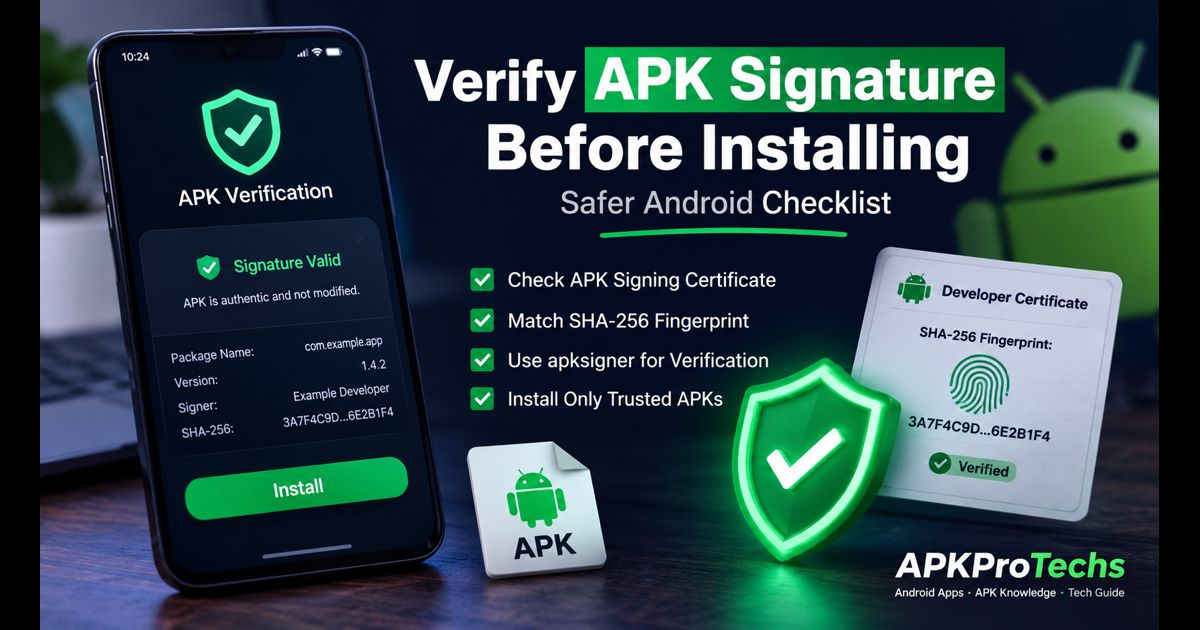
To verify an APK signature before installing, first confirm that Android can validate the file’s signature, then compare the signing certificate’s SHA-256 fingerprint with a fingerprint published by the app developer through an official channel. A successful signature check proves that the file has not been altered since its signer created it. It does not, by itself, prove that the signer is the legitimate developer.
That distinction matters most when installing an APK outside Google Play. A modified copy can be correctly signed by the person who changed it. The file may pass a basic technical check while still being unrelated to the original publisher.
For ordinary users, the safest option is still the official app store or the developer’s own website. When an APK is necessary, signature verification is a useful extra layer before granting an unfamiliar app access to a device.
What an APK Signature Actually Confirms
Android apps are signed with a private signing key. The related public certificate is embedded in the APK and can be inspected without exposing the developer’s private key.
When Android verifies the signature, it checks whether protected parts of the package still match the signed data. If someone changes code, resources, or other protected contents after signing, the verification should fail. Android’s modern APK Signature Schemes also protect the package more comprehensively than the older JAR-based approach.
A passing result answers one limited but important question: “Has this exact APK remained intact since it was signed?”
It does not answer every safety question:
- Was the file signed by the real developer?
- Is it the correct app version for the device?
- Does it contain unwanted behavior that was present before signing?
- Is the download page genuine?
- Is the file part of a complete multi-package installation?
Treat signature checking as evidence, not a blanket safety guarantee.
Start With the Publisher, Not the Download Button
The certificate comparison is only meaningful when the expected fingerprint comes from a trustworthy source. Look for it on the developer’s official website, official documentation, verified source-code release page, or an authenticated project announcement.
Do not use a fingerprint copied from the same download page that supplied the APK. That only compares one untrusted claim with another.
A stronger process looks like this:
- Find the app’s official publisher page independently.
- Check whether the developer publishes a SHA-256 signing-certificate fingerprint.
- Download the APK from the publisher’s own release page where possible.
- Inspect the downloaded APK’s certificate.
- Compare the two values character by character.
If the developer does not publish a fingerprint, do not substitute a random value from a forum, video, comment, or third-party mirror. Prefer the official store or contact the publisher through a verified support channel.
Verify the APK With apksigner
apksigner is part of Android SDK Build Tools. It can check whether an APK’s signature is expected to verify on the Android versions supported by that app.
After installing Android SDK Build Tools and opening a terminal in the folder containing the downloaded file, run:
apksigner verify –verbose –print-certs app.apk
Replace app.apk with the actual filename.
The command checks the available signing schemes and prints certificate details. A typical successful result may show one or more schemes as verified, depending on the app and Android versions it supports. Older compatibility schemes do not need to show the same results as newer ones.
The important section is the certificate information, especially:
Signer #1 certificate SHA-256 digest:
Copy that SHA-256 digest and compare it with the fingerprint published by the legitimate developer. Ignore spacing and letter case only if the publisher formats its value differently; the hexadecimal characters must otherwise match exactly.
For a simple signature check without certificate details, use:
apksigner verify app.apk
A successful command means the APK signature validates. The –print-certs option provides the information needed to establish whether the signer is the expected publisher.
How to Read the Result
A certificate match is a strong sign that the downloaded file was signed with the same signing identity as the official release. It is especially valuable when the fingerprint came directly from the publisher.
A mismatch deserves caution, but it is not always proof of an attack. Developers can rotate signing keys, and some distribution channels may use a different legitimate signing arrangement. Google Play App Signing can also create confusion because developers may have both an upload certificate and an app-signing certificate.
Do not install immediately after seeing a mismatch. Instead, check whether the developer has announced a signing-key change or publishes separate fingerprints for different stores. If there is no clear official explanation, discard the file and obtain it from an official source.
A verification failure is simpler: do not install the APK. Download it again only from the developer’s official location, and avoid disabling Android protections to force an installation.
Compare the Right Certificate
The certificate expected by users is the certificate that signs the APK being installed. For an app installed from Google Play, this may be the Google Play app-signing certificate rather than the developer’s upload certificate.
That is why a developer’s documentation should identify the distribution channel connected to its published fingerprint. A legitimate APK from a direct-download page may use one certificate, while the Play Store build may use another.
The package name is also worth checking. Look for the official Android package identifier in the developer’s documentation or in a known legitimate installation. A familiar app name and icon are easy to imitate; the package name and signing certificate are more useful technical identifiers.
First Installations Need More Care
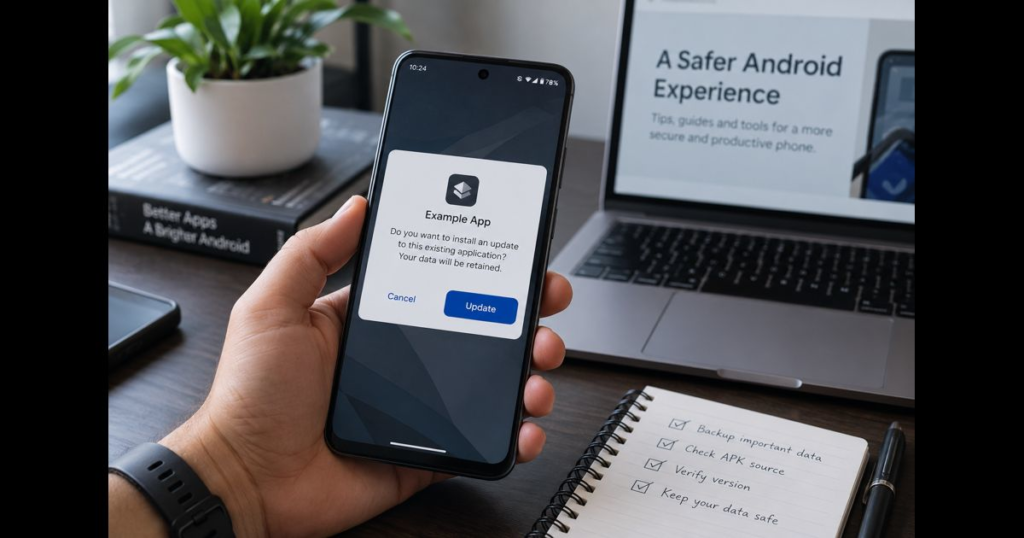
Android normally prevents an update from replacing an installed app when the new APK is signed with an unrelated certificate. This protects the update path after a trusted first installation.
The first installation is different. Android has no earlier certificate to compare, so the user must establish trust before installing the app. That is the point where an official fingerprint and an independent publisher check add the most value.
Do not remove an existing legitimate app merely to install a version signed by a different certificate. An “app not installed” or signature-conflict message can be a warning that Android is rejecting an incompatible replacement.
For wider context on package formats, installation, and safer Android practices, readers can explore APKProTech’s APK knowledge.
Hashes and Signatures Are Different Checks
A file hash, such as SHA-256, identifies one exact file. If a developer publishes the SHA-256 hash of a release, comparing it with the downloaded file can show whether the download is byte-for-byte identical to that release.
A signing-certificate fingerprint identifies the certificate used to sign the app. It can remain the same across many legitimate versions of an app.
Both checks can be useful, but they answer different questions:
- File hash: Is this the exact release file the publisher listed?
- Signature verification: Has the package been altered since signing?
- Certificate fingerprint: Was it signed by the expected publisher identity?
When the official publisher provides both a release-file hash and a signing-certificate fingerprint, check both. That offers better evidence than relying on only one signal.
Watch for Split APKs and App Bundles
Not every Android app arrives as one standalone APK. Some downloads contain multiple APK files for different screen densities, processor architectures, or language resources. Files may also come in formats such as .apks, .xapk, or .apkm.
A signature check on one component does not automatically confirm that every required component is present or correctly handled by an installer. Use the distribution method the developer documents, and do not rename or unpack files merely to make Android accept them.
Android App Bundles are a publisher format rather than directly installable APKs. Google Play generates device-specific APKs from them. If a third party offers a package with an unfamiliar extension, verify the publisher’s instructions before proceeding.
Checks That Still Matter After a Certificate Match
A matched certificate reduces the chance of installing an altered impersonation, but it cannot judge every aspect of an app. Before installation, also check:
- The publisher’s real domain and support contact details.
- The app version, release notes, and Android-version requirements.
- Whether the requested permissions fit the app’s stated purpose.
- Whether the download was pushed through an unexpected message, ad, or urgency claim.
- Whether Google Play Protect and Android security updates are enabled.
- Whether the app asks for banking credentials, recovery codes, accessibility access, or device-admin privileges without a convincing reason.
Be especially cautious with files presented as urgent account fixes, government notices, payment updates, delivery confirmations, or “premium unlocked” versions. Those claims are common social-engineering pressure tactics, and a file should not be trusted merely because it has a polished icon or familiar name.
A Practical Decision Rule
Install only when the source is credible, the signature verifies, and the certificate fingerprint matches a value obtained independently from the legitimate publisher.
Pause when the APK is validly signed but no official fingerprint is available. A technically valid signature without an established identity is incomplete evidence.
Stop when the signature check fails, the fingerprint does not match, the developer cannot explain a certificate change, or the app’s requested access conflicts with its purpose. Deleting the file is safer than trying to work around the warning.
Final Thoughts
Verifying an APK signature before installing is most useful when it connects three facts: the file has not been modified after signing, the signer matches the legitimate developer, and the app is being obtained through a credible distribution path.
That approach is more dependable than trusting a file name, download count, visual design, or a claim that an APK has been “tested.” It also keeps the decision focused on evidence that Android users can check before an unfamiliar app gains access to their device.






Leave a Reply