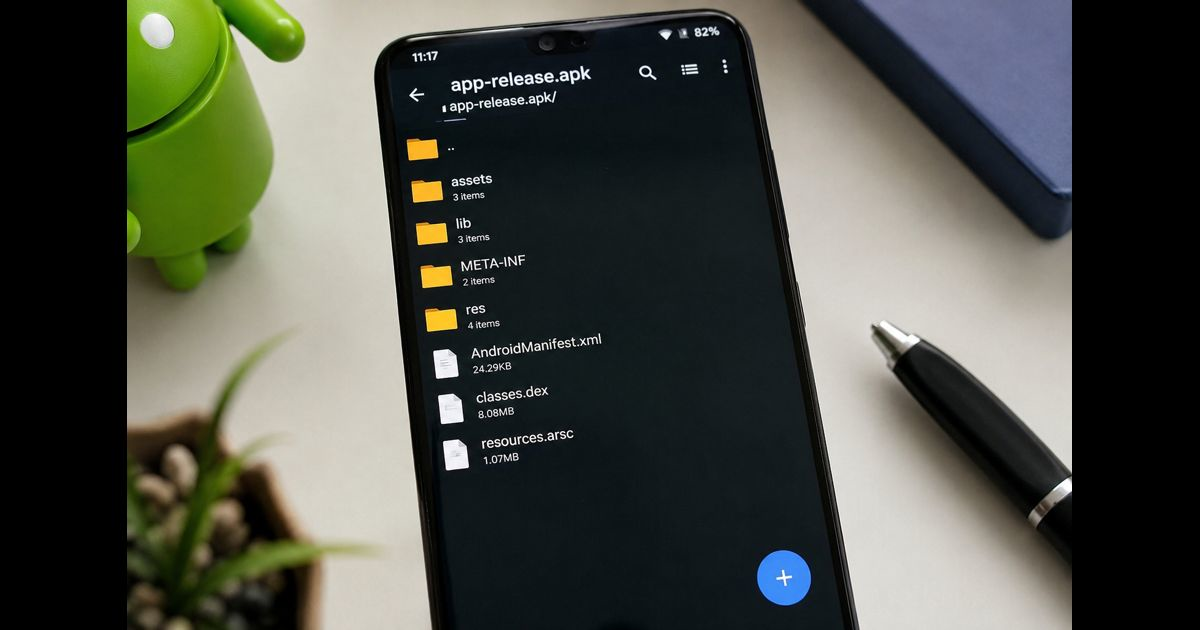
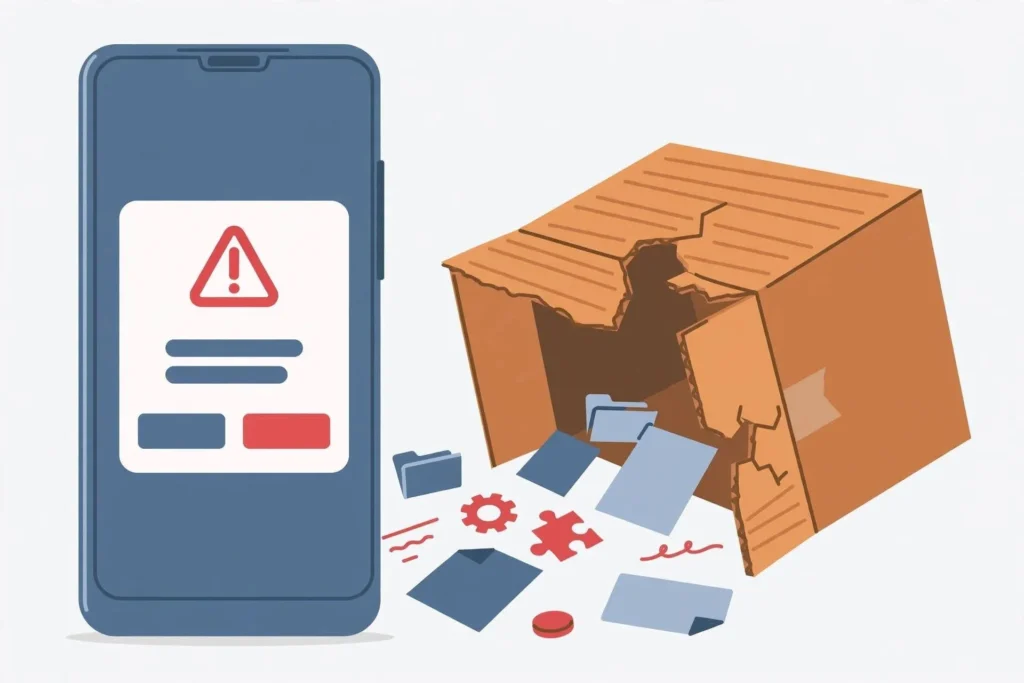
If an APK opens as a file list instead of installing, Android is usually sending it to an archive or file-management app rather than the system package installer. The same symptom can also appear when the download is not a standalone APK, the filename has changed, or the website served the file with the wrong content type.
Do not extract the files shown inside the APK. An APK is an archive internally, but Android must pass the complete, unchanged package to its installer.
Quick Fix
Try these steps in order:
- Close the file-list or archive screen.
- Open the phone’s built-in Files, My Files, or File Manager app.
- Go to Downloads and inspect the complete filename.
- Confirm that it ends in .apk, not .zip, .apk.zip, .xapk, .apks, or .apkm.
- Long-press the file and look for Open with, Install, or Package Installer.
- If an archive app opens automatically, clear that app’s default file-opening settings.
- Grant “Install unknown apps” permission to the app being used to open the APK.
- Download a fresh copy from the developer’s official source if the installer still does not appear.
Menu names differ slightly between Pixel, Samsung, Xiaomi, Motorola, OnePlus, and other Android devices.
What the File List Means
A normal APK contains files and folders such as:
- AndroidManifest.xml
- classes.dex
- resources.arsc
- META-INF
- lib
- res
- assets
Seeing those items does not mean they should be installed separately. It means an archive-capable app has opened the APK’s internal contents.
The important distinction is what happens before the file list appears:
|
What happens |
Most likely cause |
|
An archive app opens immediately |
Incorrect default app or file association |
|
The filename ends in .zip or .apk.zip |
Incorrect extension or server response |
|
The file ends in .xapk, .apks, or .apkm |
It is a bundle, not a directly installable APK |
|
Only one particular download behaves this way |
Damaged, incomplete, or incorrectly hosted file |
|
Every APK behaves this way |
File-manager default or device-level restriction |
|
The installer opens and then reports an error |
The file association is fixed; a separate package problem remains |
Check the Complete Filename
Open the file’s Details, Properties, or Information screen. Do not rely only on its icon or the shortened name shown in Downloads.
A directly installable package should end in exactly:
app-name.apk
Watch for misleading names such as:
- app-name.apk.zip
- app-name.zip
- app-name.apk.html
- app-name.xapk
- app-name.apks
- app-name.apkm
- app-name.apk.1
Some file managers hide extensions, while browsers may add a second extension when a server labels the download incorrectly. Renaming a genuine .apk.zip download to .apk may help only when the file was originally a valid APK and nothing else changed. Renaming an unrelated ZIP, HTML page, or bundle does not convert it into an installable application.
The distinction between APK, APKS, APKM, and XAPK formats matters because each format has different installation requirements.
Open the APK Through the System File Manager
A browser’s download notification may hand the file back to the wrong application. Opening the same file from the phone’s built-in file manager can invoke Android’s installer correctly.
- Open Files, Files by Google, My Files, or the manufacturer’s file manager.
- Select Downloads.
- Find the APK.
- Tap it once.
- If prompted to choose an app, select Package Installer, App Installer, or Install packages.
- Choose Just once until the behavior has been confirmed.
Package Installer is normally a system component. Do not download a random application merely because it uses that name.
If the built-in file manager installs the APK while the browser does not, the downloaded package is probably intact. The problem is the browser’s handoff, its permission, or a default-app setting.
Clear the Archive App’s Default Settings
A ZIP utility or third-party file manager may have been set to open APK files automatically.
Use one of these common routes:
Settings > Apps > archive app > Open by default > Clear defaults
or:
Settings > Apps > Default apps > Opening links or file handling
After clearing the default:
- Return to Downloads.
- Tap the APK again.
- Select the system installer if Android presents an app chooser.
- Avoid selecting Always until the correct application opens.
Some Android versions do not expose file-type associations in one central menu. If Clear defaults is unavailable, temporarily disabling or uninstalling the archive utility can force Android to choose another compatible handler. Reinstalling the utility later should not affect the downloaded APK.
Allow Installation From the Correct Source
Modern Android versions grant sideloading permission per source. The permission must belong to the application that launches the APK, not necessarily the application that downloaded it.
For example:
- Opening from Chrome requires permission for Chrome.
- Opening from Files requires permission for Files.
- Opening from My Files requires permission for My Files.
- Opening an attachment from a messaging app may require permission for that app.
A common path is:
Settings > Apps > Special app access > Install unknown apps
Select the relevant source and enable Allow from this source. On some phones, Android takes the user directly to this setting after the APK is tapped.
This permission should be enabled only for a trusted source and turned off afterward if it is no longer required. It does not make an APK safe; it only permits that application to request installation.
If no installation permission screen appears and the contents open as folders, correct the file association or format first.
Make Sure It Is a Standalone APK
Files distributed as .apks, .apkm, or .xapk often contain a base APK plus configuration files or additional resources. A normal tap may open the bundle as an archive because Android’s standard installer does not treat the container as one standalone package.
Do not:
- Extract and install random APKs from the bundle.
- Rename the bundle to .apk.
- Install only base.apk and assume the application is complete.
- Use an unknown installer suggested by an advertisement or pop-up.
A universal APK or split APK must be handled according to how the developer distributed it. Split installations can include separate packages for processor architecture, language, screen density, or features. Missing one required split can prevent installation or leave the application unusable.
Obtain a universal APK when the publisher provides one. Otherwise, use the installation method recommended by the legitimate developer or distributor.
Download the File Again
A partial download can retain an .apk name even though the package is incomplete. Delete the failed copy and download it again over a stable connection.
Before retrying:
- Confirm that the source is the developer’s official website or another source you independently trust.
- Check whether the displayed file size matches the publisher’s information.
- Make sure the phone has enough free storage.
- Avoid download accelerators that rename or combine files.
- Try the built-in browser or a different reputable browser.
- Open the completed download from the system file manager.
If the website publishes a SHA-256 checksum, compare it with the downloaded file. A mismatch means the file is different from the one the publisher measured. It may be incomplete, modified, or the wrong release.
Never keep retrying a package received unexpectedly through email, SMS, a messaging group, or a pop-up. Delete it instead.
Check Whether Device Security Is Blocking Installation
Security controls normally display a warning rather than an internal file list, but they can become relevant after the correct installer starts.
Possible restrictions include:
- Google Play Protect identifying a potentially harmful app
- A work profile or mobile-device-management policy
- Parental controls
- Samsung Auto Blocker or another manufacturer security setting
- Advanced Protection settings
- A company-owned device that prohibits unknown app sources
Do not disable security features merely to force an unfamiliar file to install. On a work or school device, contact the administrator. If Play Protect warns that an application may be harmful, verify the developer and distribution source instead of bypassing the warning.
If the Installer Opens but Installation Still Fails
Once Android displays the installation screen, the original file-list problem has been resolved. Any message that follows points to a different issue.
“There Was a Problem Parsing the Package”
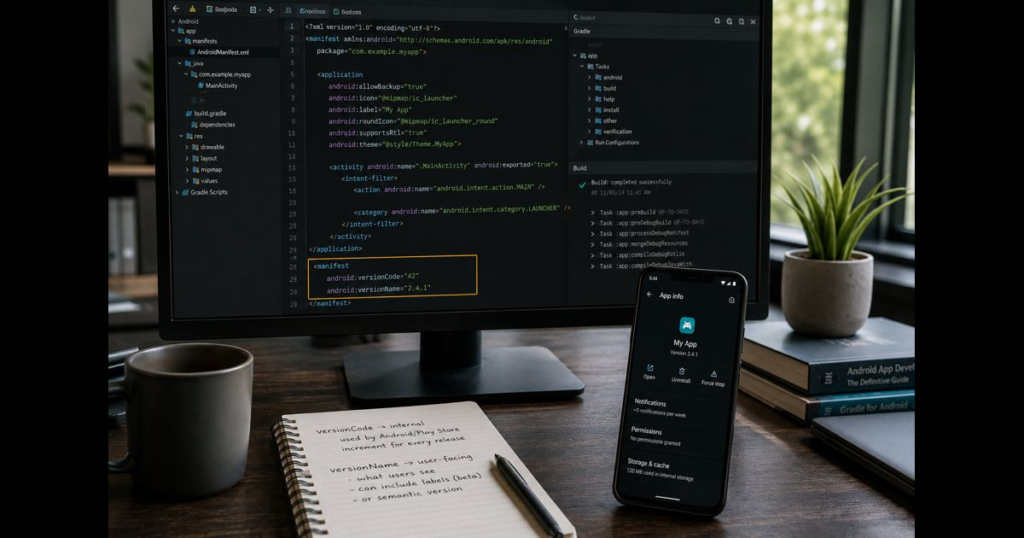
This can indicate a corrupted download, an invalid manifest, an APK built for a newer Android version, or a malformed package. Redownload the file before changing device settings. Further troubleshooting depends on the exact problem parsing the package message and the Android version.
“App Not Installed”
Common causes include:
- A conflicting version of the same application
- A different signing certificate
- Insufficient storage
- An unsupported Android version
- Missing split packages
- An incompatible processor architecture
- A device policy blocking the installation
Do not uninstall an existing app until its local data has been backed up and the replacement package has been verified. Removing it can permanently delete app-specific data.
“Package Appears to Be Invalid”
Confirm that the file is a real APK, download it again, and verify its source. A webpage, access-denied response, or expired download message can sometimes be saved with an APK-like filename even though it contains no application package.
Fixes for Website Owners and App Distributors
If many users receive a file list from the same APK URL, inspect the server response before asking users to change their phones.
The APK response should use:
Content-Type: application/vnd.android.package-archive
A download response may also include:
Content-Disposition: attachment; filename="app-name.apk"
Check the final response after every CDN, redirect, authentication layer, and storage service. The origin server may return the correct type while a proxy or object-storage rule replaces it with application/zip, text/plain, or a generic binary type.
Also confirm that:
- The final URL returns the APK rather than an HTML login or error page.
- The filename remains intact after redirects.
- The server does not append .zip.
- Range requests do not produce incomplete files.
- The published file size and checksum match the release artifact.
- The signed production APK is being served rather than an intermediate build.
- Multiple browsers and current Android devices reproduce the correct installer handoff.
Changing only the visible download-link name is insufficient. The final response headers and delivered bytes must both be correct.
When to Stop and Delete the APK
Delete the file instead of installing it if:
- It arrived unexpectedly from an unknown sender.
- The source imitates a bank, government office, courier, or well-known company.
- The filename has multiple suspicious extensions.
- The publisher cannot be verified.
- The download size changes unexpectedly between attempts.
- Its checksum does not match the publisher’s value.
- Its signing identity is different from the expected developer.
- It requests unusual access such as SMS, accessibility, notification reading, device administration, or screen control without a clear need.
Opening the archive contents is not itself proof of malware, but forcing an unverified APK to install creates unnecessary risk.
Frequently Asked Questions
Why does Android treat an APK like a ZIP file?
An APK uses a ZIP-based container internally. An archive app can therefore display its contents. Android installs it only when the complete package is passed to the system package installer.
Should I extract an APK before installing it?
No. Android needs the complete APK, including its manifest, compiled code, resources, and signature information. Extracting it does not install the application.
Can I rename a ZIP file to APK?
Only a valid APK that was mistakenly given a .zip extension may work after the extension is corrected. Renaming an ordinary ZIP, bundle, or downloaded webpage does not turn it into an APK.
Why does the APK install from one file manager but not another?
Each file manager can handle file types differently, and sideloading permission is granted per source. One app may invoke Package Installer correctly while another opens the APK as an archive.
Why is Package Installer missing from “Open with”?
The archive app may be set as the default, the file may not actually end in .apk, or the device may not recognize it as an installable package. Clear the archive app’s defaults, verify the full filename, and open it through the built-in file manager.
Does “Allow from this source” fix the file-list screen?
Not by itself. That permission matters when the correct installer is invoked. If folders and internal files appear first, correct the file association or determine whether the download is a bundle rather than a standalone APK.





Leave a Reply