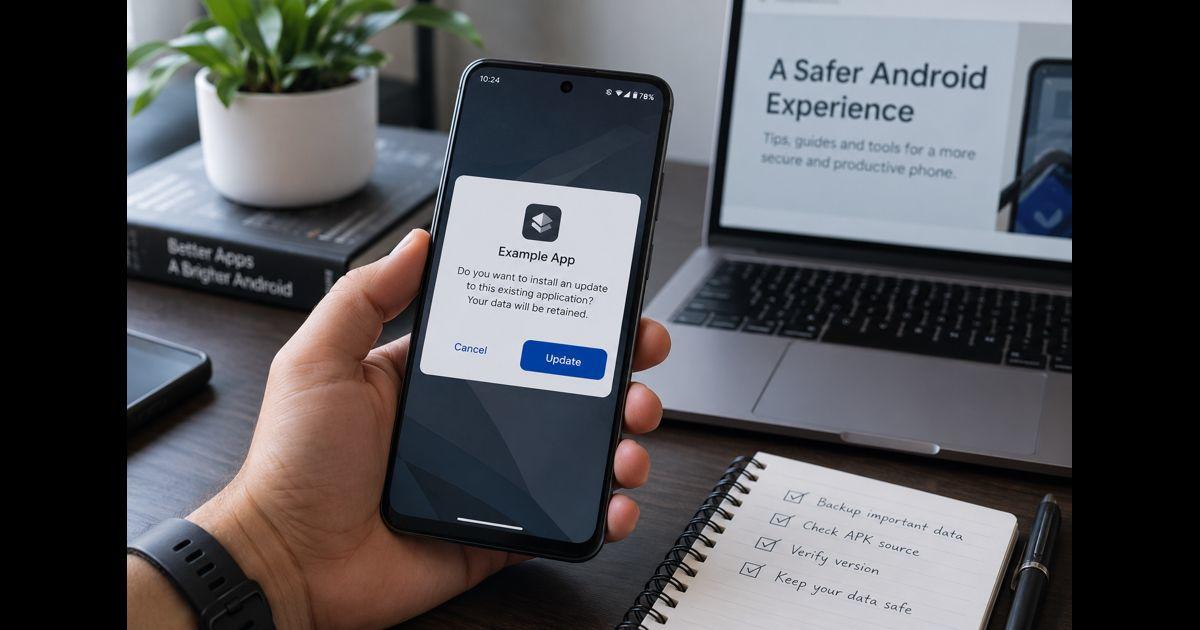
To update an APK without losing data, install the newer APK over the existing app instead of uninstalling it first. Android can treat the installation as an update when the new file uses the same package name, has a compatible signing certificate, carries an acceptable version code, and supports the device. Your app settings, databases, saved progress, and sign-in state normally remain in place.
Back up anything important before starting. An in-place update is designed to retain app data, but a faulty release, failed database migration, damaged file, or incompatible build can still cause problems inside the app.
The Four Conditions a Data-Preserving Update Must Meet
Android does not decide whether two files are the same app from their icon or display name. It checks technical identity and compatibility.
- The package name must match. The installed app and new APK need the same application ID, such as com.example.app. A file with a different package name is a separate app, even if it has the same name and icon.
- The signing certificate must match or follow a valid key-rotation path. Android uses the certificate to confirm that an update is authorized by the app's publisher. A differently signed build cannot normally replace the installed one. A verified APK signature is therefore more meaningful for update identity than the filename.
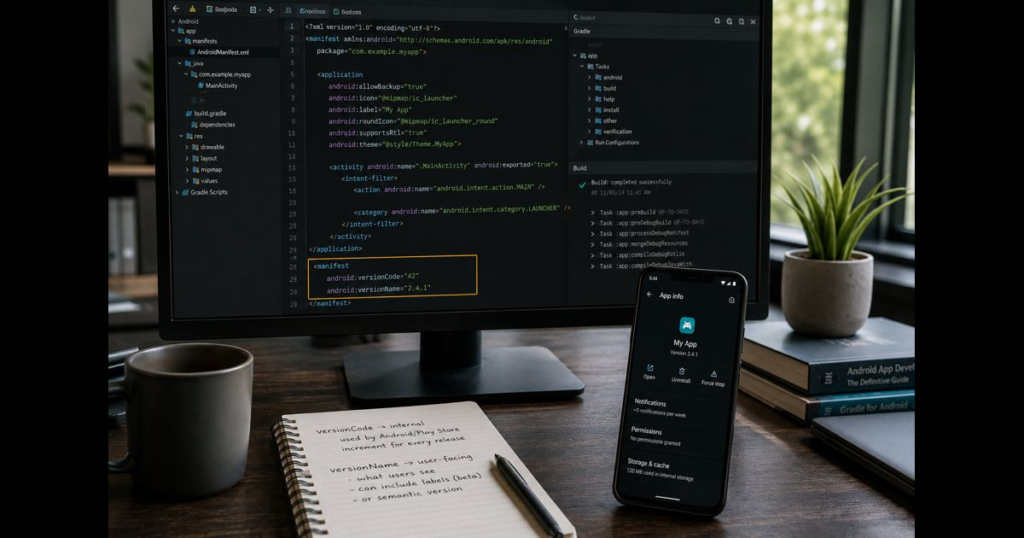
- The new version code must be acceptable. Android normally permits a newer build and blocks a lower one. The visible version name can be misleading because the internal APK version code and version name serve different purposes.
- The build must be compatible with the phone. The Android version, processor architecture, required hardware, and package format all matter.
Using the same download source as the installed version is the safest practical shortcut because different stores or distribution channels may sign their builds differently. It is still a precaution rather than proof; the certificate and package identity are what Android ultimately checks.
What Data Usually Stays During an APK Update
An ordinary in-place update replaces the app's installed code and resources while leaving its assigned data area intact. This usually preserves:
- app preferences and settings;
- local databases;
- downloaded content stored in the app's private storage;
- locally saved game progress;
- account sessions and authentication tokens;
- files the app created in shared storage; and
- cloud information associated with the signed-in account.
The app itself may change this information when it first opens after the update. For example, a new release may migrate its database, sign the user out, remove an obsolete setting, or redownload content. Cloud data normally remains on the provider's servers, but local-only records deserve a separate backup.
Cache is not the same as saved data. Android or the app may rebuild temporary cache files without affecting settings or account information. Do not select Clear storage, Clear data, or Delete app data while preparing the update.
Before Installing the New APK
1. Confirm the Current App and Version
Open the app's settings or About screen and note its version. You can also open Settings > Apps, select the app, and look for version information near the bottom of the App info page. Menu names differ between phone brands.
Make sure you are updating the correct copy. Apps in a work profile, private space, secondary Android user, or manufacturer cloning feature keep separate data. Updating one copy does not merge its information with another.
2. Protect the Data That Cannot Be Recreated
Use the app's own backup, export, or sync option when available. This is usually the best protection because the app understands its own database and file formats.
- Confirm that the correct account is signed in.
- Run a manual sync and check its completion time if the app shows one.
- Link game progress to the supported account before updating.
- Export chats, notes, projects, authenticator recovery information, or local databases when the app provides that option.
- Copy user-accessible media, documents, and export files to another folder or device.
Android device backup may include apps and app data, but support depends on the app and cannot be assumed to cover every local record. Treat it as an additional safeguard, not a substitute for an app-specific export.
3. Get the Update From the Same Trusted Channel
If the app was installed from Google Play, update it through Google Play when possible. If it came from the publisher's website, GitHub release page, an organization portal, or another app store, return to that same channel.
Switching sources can cause a signing conflict even when both files appear legitimate. This is common when a store uses its own signing process, when a developer distributes separate channel builds, or when an unofficial file has been modified and re-signed.
Do not disable Play Protect to force an update. If Android or a trusted security service warns that the file is harmful, stop and verify the source rather than treating the warning as an installation obstacle.
4. Check the File Before Opening It
Confirm that the download completed and that the filename ends in .apk when a single APK is expected. A publisher-provided SHA-256 value can be compared with the file's digest; a SHA-256 checksum confirms that the downloaded bytes match the publisher's reference, while the signing certificate identifies who signed the app.
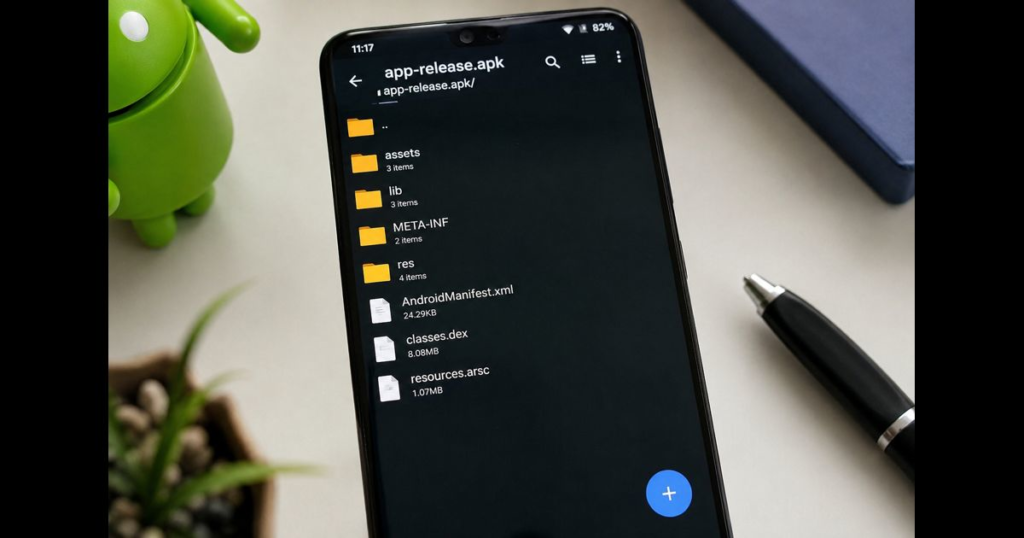
Also check whether the app is distributed as a universal APK or a set of split packages. A base APK by itself may be incomplete. The distinction between a universal APK and split APK matters because an existing split installation may require a complete, compatible set of packages or the original store's installer.
Leave enough free storage for Android to stage and optimize the update. The phone may need considerably more free space than the APK's displayed download size.
How to Install the APK Over the Existing App
- Download the newer, compatible APK from the trusted source used for the installed app.
- Open the file from the phone's Files app, Downloads screen, or the source's official installer.
- If Android requests permission, allow Install unknown apps only for the specific browser or file manager you are using. This permission is granted per source on modern Android versions.
- Review the app name and any new permission information shown by Android.
- Choose Update or confirm the prompt to install an update to the existing app. Do not uninstall the current app.
- Wait for the installation to finish, then open the app normally.
If the install screen does not recognize the file as an update, stop before removing anything. A package-name difference, signing mismatch, lower version code, or incomplete split package may be responsible.
Afterward, turn off the install-unknown-apps permission for the browser or file manager if you do not regularly sideload apps.
Verify the App Before Relying on It
Open the updated app and check the following:
- the displayed version has changed;
- important records, projects, messages, or saved progress are present;
- the expected account is still signed in;
- recently created data opens correctly;
- offline downloads or expansion files are available;
- background sync completes; and
- newly requested permissions are appropriate for the added features.
Do not delete your exported backup immediately. Keep it until the app has opened more than once, completed any migration or synchronization, and shown that new data can be saved correctly.
Why an APK Update Fails and What to Do Safely
|
Message or behavior |
Likely cause |
Data-safe response |
|
App not installed or package conflicts with an existing package |
Different signing certificate, conflicting package, cloned app, or incompatible variant |
Keep the installed app. Find an update from the same publisher and channel. A package conflict with an existing package cannot be made safe by repeatedly retrying the same mismatched file. |
|
Android says a newer version is already installed |
The APK has a lower internal version code |
Obtain a newer compatible build. Avoid downgrading when preserving data is important. |
|
The file installs as a second app |
It uses a different package name |
The two apps have separate data areas. Use the matching update for the original package. |
|
There was a problem parsing the package |
Incomplete download, damaged APK, unsupported Android version, or malformed package |
Download the file again from the trusted source and confirm device compatibility. Do not uninstall the working app. |
|
Only a base APK is available or the installer reports missing splits |
The app requires configuration APKs for the device |
Use the original store or obtain the complete split package set from the publisher. |
|
App not compatible with your phone |
Android version, CPU architecture, screen configuration, or required hardware does not match |
Select the publisher's correct device variant. Do not remove the compatible installed version first. |
|
Install-unknown-apps control is unavailable |
Device policy, work-profile rules, parental controls, or administrator restrictions |
Use an approved app store or ask the device administrator. Do not bypass an organizational security policy. |
|
Installation stops because storage is low |
Android lacks room to stage or optimize the app |
Remove unrelated downloads or unused media. Do not clear the target app's storage. |
|
A system app refuses the APK |
The manufacturer or operating system uses a different privileged signature |
Update through system settings, the manufacturer's store, or the device's official firmware channel. |
Uninstalling the old app may make a mismatched APK install, but it changes the operation from an update to a fresh installation and normally removes the old app's private data. It is not a data-preserving fix.
Special Cases That Need Extra Care
Apps Installed From Google Play
An APK obtained directly from a developer may not replace the Play-installed version if the signing certificates differ. Return to Google Play unless the publisher explicitly documents a compatible transition. The same caution applies when moving between app stores.
Split APKs, APKS, APKM, and XAPK Files
These are not always single files that Android's basic package installer can handle. They may contain a base package plus architecture, language, or screen-density components. Use a trustworthy installer that supports the exact format or update through the original distribution channel. Never assume that renaming an archive to .apk turns it into an installable update.
Games and OBB Expansion Files
An in-place APK update normally leaves shared expansion files in place, but a new release may require a different OBB version or download additional assets. Understanding what an OBB file does with an APK helps distinguish missing game assets from lost app data. Link game progress to an account before changing either component.
Modified or Re-Signed APKs
Modified builds are often signed with a different certificate from the official app and sometimes from one another. Android will reject them as updates to the official installation. Removing the original app to install a re-signed file risks both data loss and exposure to altered code. There is no safe certificate-bypass procedure that preserves Android's update security model.
Downgrading to an Older APK
Android normally blocks a lower version code. Even when a developer or test device permits a downgrade, the older app may not understand a database already migrated by the newer release. Export the data in a supported format and follow the publisher's rollback instructions instead of treating a downgrade like a routine update.
ADB Method for Developers and Testers
Android Debug Bridge can replace an installed package while retaining its data:
adb install -r app-release.apk
The -r option requests replacement of the existing application while keeping its data. It does not bypass package identity, signing, compatibility, or version rules. For a split build, all required files must be installed together:
adb install-multiple -r base.apk split_config.arm64_v8a.apk split_config.en.apk
Developers should test every database and preference migration from each supported older release. Android can preserve the data directory successfully while the updated app itself mishandles the contents, so installation success is not proof that the migration is correct.
Quick Safety Checklist
Before tapping Update, confirm that:
- important local information has an app-supported backup or export;
- the new APK comes from the same trusted publisher and distribution channel;
- the file represents the same package and compatible signing lineage;
- its version is newer than the installed build;
- the Android version, CPU architecture, and package format match the phone;
- the current app has not been uninstalled and its storage has not been cleared; and
- enough free space is available for installation.
When those conditions are met, installing the APK over the existing app is the normal way to update it without losing data.
Frequently Asked Questions
Does updating an APK delete app data?
An in-place Android update normally retains the app's private data, settings, databases, and login state. Data can still be affected by an app bug, a failed migration, or an intentional change made by the new release, which is why important local information should be backed up first.
Should I uninstall the old APK before installing the new one?
No. A normal uninstall usually removes the app's private data. Install the compatible new APK over the existing app and let Android process it as an update.
Can I update an APK from a different website or app store?
Only if the new build has the same package identity and a signing certificate Android accepts for the installed app. Using the same trusted channel is the simplest way to reduce the chance of a signature mismatch.
Will an APK update keep my game progress?
Local progress normally remains during an in-place update, while cloud progress remains tied to the game account. Link or sync the account first because guest progress may exist only on the device.
Why does Android report a conflicting signature?
The installed app and update were signed by different keys, or they belong to incompatible distribution variants. Keep the current installation and obtain the matching update. Uninstalling would remove the conflict but may also remove the data you want to preserve.
Can I install an older APK without losing data?
Ordinary Android installation blocks most downgrades, and forcing one can leave an older app unable to read newer data. Use a supported export and publisher-documented rollback process if returning to an earlier version is necessary.
Does clearing the cache help an APK update?
Clearing cache is rarely required for installation and does not fix a signature or package mismatch. Never confuse Clear cache with Clear storage or Clear data, which removes the app's saved local information.





Leave a Reply